AI Gateway on ECS and Container Apps
Deploy a Prisma AIRS AI Gateway hybrid data plane on Amazon ECS or Azure Container Apps with Terraform, from secret preparation through ingress, outbound connectivity to the management plane, and end-to-end verification
This is a companion to the AI Gateway Deployment Guide and to the AI Gateway Hybrid Infrastructure guide. It covers the two container platforms that are not Kubernetes: Amazon ECS and Azure Container Apps. Both are delivered by Terraform rather than Helm, which changes the workflow enough that the Kubernetes instructions do not transfer.
It does not repeat licensing, activation, or the Strata Cloud Manager (SCM) configuration that follows deployment. Those live in the deployment guide and you need them whichever platform you land on. It also does not repeat the two-plane architecture discussion or the platform comparison, which live in the hybrid infrastructure guide.
This guide is the platform-page path, built on the Terraform modules the vendor publishes for ECS and Container Apps. The other way to stand up a Hybrid data plane is the SCM wizard path, where the Gateway Registration wizard generates a values.yaml for the airs-gw Helm chart; that path needs Kubernetes and is documented in Phase 2 of the AI Gateway Deployment Guide. Choose one and stay on it, because installing both leaves two data planes syncing against a single Organisation ID. Which path are you on? compares them in full.
Two terms carry the whole guide. The data plane is the gateway you run in your own AWS account or Azure subscription: the container, its cache, its log store, and the network in front of them. The management plane is the Palo Alto Networks service that holds configuration, policy, and analytics, and that you reach through Strata Cloud Manager. The AI Gateway Hybrid Infrastructure guide covers the deeper architecture behind that split.
Prisma AIRS AI Gateway is the Portkey gateway, acquired by Palo Alto Networks. You will see the name Portkey throughout: in module paths, variable names, hostnames, secret names, and the vendor's own documentation. The rebrand has not reached the code, so treat portkey and AIRS AI Gateway as the same product wherever they appear below.
The guide is written as one linear pass.
Two things gate everything below.
- Licensing and activation — License and Activate, the first section of this guide, walks the whole procedure. The gateway will deploy without it, but it will not serve traffic.
- Credentials from Palo Alto Networks — you send your Organisation ID and the email address used at signup; they return Docker registry credentials for the gateway images and a Client Auth Key. There is no self-service path to these, and nothing in this guide works without them. Request them early, because this is the step most likely to add days to a deployment.
Raise that request through your Palo Alto Networks account team, or open a case in the Customer Support Portal against Prisma AIRS AI Gateway. Every later step that says "send this to the Palo Alto Networks team" means the same channel. There are six such requests in this guide; they are listed in Deployment Requirements so you can raise the early ones before you start building.
Your Organisation ID is in the SCM browser URL: https://stratacloudmanager.paloaltonetworks.com/<organisation_id>/.
Architecture
On ECS and Container Apps the gateway is a container image that Terraform places into a managed container runtime. There is no cluster to build, no Helm release, and no values.yaml. The module creates the network, the runtime, the cache, the log store, and the load balancer as one unit, and reads its secrets from the platform's own secret service.
The shape of the deployment is otherwise the same as on Kubernetes: a stateless gateway behind a load balancer, a Redis-compatible cache for synced configuration and counters, an object store for full request and response bodies, and an outbound link to the Palo Alto Networks management plane.
- Amazon ECS — you are on AWS, you want the deployment inside a VPC you control, and you want ALB or NLB semantics you already understand. This is the more configurable of the two, and the one where you pick the load balancer type yourself.
- Azure Container Apps — you are on Azure and you want the least infrastructure. A VNet is optional here, which is unique among the five supported platforms: the simplest ACA deployment has no network of your own at all.
Your selection persists as you scroll, and the same choice applies to every tabbed step below.

Reading the flows in order:
- Your applications send OpenAI-shaped requests to the load balancer. They hold a gateway workspace key, never a provider key.
- The load balancer distributes to gateway tasks on container port
8787. - Tasks read the Docker credentials, Client Auth Key, and Organisation ID from Secrets Manager at start. The task definition holds secret ARNs, so raw values never enter Terraform state.
- Tasks read synced configuration and write rate limit and budget counters to the cache store.
- Tasks write full prompt and completion bodies to your S3 bucket. In the current AIRS release that content also reaches the Strata Cloud Manager backend, so the bucket is not the only copy. See Connect the Planes.
- All other egress leaves through the NAT gateway.
- The gateway reports configuration sync, metrics, and usage to the management plane. No prompt content travels on this path.
- The gateway makes the actual model call. Provider egress rules now follow the gateway, not your applications.
- Image pulls happen at install and upgrade only.

Reading the flows in order:
- Your applications send OpenAI-shaped requests to the ingress. They hold a gateway workspace key, never a provider key.
- The ingress distributes to gateway replicas on port
8787. - You give the module secret names, not values. For the Client Auth Key, the Organisation ID, and the Docker password it composes a Key Vault secret URI and attaches the user-assigned managed identity, so Container Apps resolves each value at runtime and Terraform never reads it. Those values do not enter Terraform state. The Docker username is the exception: the module reads it with a
datablock to build the registry block, so it does land in state in plain text. This is verified againstterraform/acaatv1.1.3, the version pinned in step 2.2. - Replicas read synced configuration and write rate limit and budget counters to the cache store.
- Replicas write full prompt and completion bodies to your Blob container. In the current AIRS release that content also reaches the Strata Cloud Manager backend, so the container is not the only copy. See Connect the Planes.
- All other egress leaves through the environment's outbound path.
- The gateway reports configuration sync, metrics, and usage to the management plane. No prompt content travels on this path.
- The gateway makes the actual model call. Provider egress rules now follow the gateway, not your applications.
- Image pulls happen at install and upgrade only.
Those pages require the management plane to reach your gateway inbound, over a private link or an IP allow-list. Palo Alto Networks confirmed on 2026-09-27 that private link is not supported with Strata Cloud Manager today and that connectivity is outbound from the gateway only.
Build the outbound direction in step 4 and stop there. If you follow the platform pages literally you will authorise a Palo Alto Networks account into your VPC, or put three management plane addresses into a load balancer allow-list, for a path that nothing uses.
Deployment Requirements
The requirements split into four groups: what Palo Alto Networks has to give you, the requests you have to send them and wait on, what you need installed locally, and what your cloud account has to allow.
All three items come from the same request. Send your Organisation ID and the signup email address to the Palo Alto Networks team.
| Item | Used for | Where it ends up |
|---|---|---|
| Docker registry username | Pulling the gateway image | Secrets Manager or Key Vault |
| Docker registry password | Pulling the gateway image | Secrets Manager or Key Vault |
| Client Auth Key | Authenticating the whole data plane to the management plane. The scope is the organisation, so one key covers every environment you deploy under it | PORTKEY_CLIENT_AUTH |
The Client Auth Key has a lifecycle you do not control. Because the scope is the organisation, the same key authenticates your non-production deployments, so treat a development copy with production care. No expiry period and no rotation procedure are published, so plan on a request to Palo Alto Networks whenever you need either. If the key is exposed, request a replacement through the same channel, then re-run step 1 and step 2 in every environment that holds it.
You read your Organisation ID off the SCM URL, and it becomes ORGANISATIONS_TO_SYNC. If you sync more than one organisation, the value is comma-separated.
The Client Auth Key authenticates your entire data plane: anything holding it can register as your gateway. Scope, expiry, and rotation are set by Palo Alto Networks, not by you, so to revoke or rotate it you raise the same request that issued it. Put all four values (the two Docker registry values, the Client Auth Key, and your Organisation ID) into the platform secret service in step 1, and never into a .tfvars file, a repository, a ticket, or a chat message.
Six steps in this guide require you to send something to Palo Alto Networks and wait for someone on their side to act. Each one blocks the step it sits in, and the first two can be raised before you build anything, so raise them now rather than at the step that needs them. Use the channel named in the Before you start callout for all of them.
| Request | What you send | Raise it | It blocks |
|---|---|---|---|
| Initial credentials | Organisation ID and the signup email address | Now | Step 1, and everything after it |
| Account allow-listing for outbound PrivateLink (ECS) | Your AWS account root ARN | Now, it depends on nothing Terraform builds | Step 4.2, ECS |
| Subscription allow-listing for outbound Private Link (ACA) | Your Azure subscription ID | Now, it depends on nothing Terraform builds | Step 4.2, ACA |
| Teardown | A request to remove their side of any private link | Before terraform destroy | Clean removal, see Scaling and Upgrades |
No turnaround is published for any of these requests, so treat each one as an unknown wait when you schedule the work. The two allow-listing requests are the ones worth raising on day one: without them, step 4 stops while infrastructure built in step 2 sits idle.
| Requirement | Detail |
|---|---|
| Account | AWS account with permissions to create ECS, EC2, VPC, ELB, IAM, S3, Secrets Manager, and CloudWatch resources |
| CLI | AWS CLI, configured with credentials |
| Terraform | v1.13 or later |
| Identities the module creates | A gateway task role, to which the module attaches a policy granting s3:PutObject and s3:GetObject on the buckets you configure and nothing wider, and an ECS task execution role that reads the two secrets from step 1. The execution role's exact secrets-read grant is not documented; confirm it in the plan output |
| Gateway sizing | 1 vCPU (1024 CPU units) and 2 GiB per task |
| Availability (production target) | Tasks across at least two Availability Zones, autoscaling enabled. The step 2 configuration is below this deliberately; raise it as described under Scaling and Upgrades |
| Cache store | Built-in Redis task, or ElastiCache for Redis OSS or Valkey in the same VPC |
| Log store | S3 or any S3-compatible store. Optional in the module; this guide configures one, created in step 2.1b |
| Requirement | Detail |
|---|---|
| Subscription | Azure subscription with permissions to create Container Apps, Key Vault, Storage, VNet, and Application Gateway resources |
| CLI | Azure CLI, configured with credentials |
| Terraform | v1.5 or later |
| Identities the module creates | Not documented. The principal that reads the Key Vault secrets and the identity the container app uses to write to the log store are both unstated upstream; read them out of the plan output before you approve the deployment |
| Gateway sizing | 1 vCPU and 2 GiB per replica |
| Availability (production target) | Autoscaling across multiple Availability Zones, which requires a VNet deployment. The step 2 configuration is below this deliberately; raise it as described under Scaling and Upgrades |
| Cache store | Built-in Redis container app, or Azure Managed Redis |
| Log store | Azure Blob Storage or any S3-compatible store. Created for you if you do not name one; step 2.2 names one |
Both tables ask for rights to create roles or role assignments, which is close to account-wide privilege on AWS and subscription-wide on Azure. Review the plan output for any policy broader than the rows above before applying. The deploying principal needs role-creation rights for the duration of the apply; scope it to the deployment's resource group or use a dedicated deployment role rather than a standing grant. Whether Owner is required on Azure to create the step 1 Key Vault role assignment is not documented; User Access Administrator on the vault's resource group is the narrower grant to try first.
The per-task and per-replica figures above are the vendor's stated minimums. They are not throughput-derived, and no requests-per-second guidance is published for either platform. Treat 1 vCPU and 2 GiB as the smallest unit that runs, then size the count of tasks or replicas from your own load test. The gateway is stateless, so horizontal scaling is the lever that matters.
Log volume is the one number you can plan against: each log document is roughly 10 kB uncompressed. Multiply by request volume and retention to size the bucket or container.
Both platforms list the log store as optional, and the gateway will run without one. What you lose is the full prompt and completion body for every request, which is the artifact most teams deployed the gateway to get. Metrics and analytics still reach Strata Cloud Manager either way. Configure the log store unless you have a specific reason not to retain request content.
This question comes up on every AWS engagement, and the published documentation does not answer it.
With create_cluster = true, which is what every published example uses, the module builds an ECS cluster whose only capacity provider is backed by an EC2 Auto Scaling group. The instance_type, min_asg_size, max_asg_size, and desired_asg_size variables exist precisely because tasks run on container instances you own. The documented path is EC2-backed ECS, not Fargate.
The task definition itself is Fargate-capable. It declares requires_compatibilities = ["EC2", "FARGATE"] with awsvpc networking, and the service attaches through a capacity provider strategy rather than a hard-coded launch type. The gateway's 1024 CPU units and 2048 MiB are also a valid Fargate size combination. The pieces for a Fargate deployment are therefore in place.
Reaching Fargate means bypassing the module's cluster creation:
- Create the ECS cluster yourself with the
FARGATEandFARGATE_SPOTcapacity providers registered. - Set
create_cluster = false, and supplycluster_nameandcapacity_provider_namepointing at that cluster.
The combination above is inferred from reading the module, not from vendor documentation or a tested deployment. No Palo Alto Networks or Portkey documentation describes a Fargate deployment, and the EC2 lifecycle hook and Auto Scaling resources the module ships alongside the cluster have no Fargate equivalent. Do not commit to Fargate for a customer deployment on the strength of this section. Confirm with the product team first, and treat the EC2-backed path as the supported one until they say otherwise.
If the requirement behind the question is "no servers to patch" rather than "Fargate specifically", Azure Container Apps satisfies it today with no such caveat, and on AWS a Bottlerocket-based Auto Scaling group gets most of the way there.
License and Activate
AI Gateway is licensed with flex credits and activated through a deployment profile in Strata Cloud Manager. None of the Terraform work below produces a gateway that serves traffic until this is done, so it comes first. The four steps run in the Customer Support Portal and in SCM; no AWS or Azure resources are involved.
Licensing is per tenant, not per data plane. If someone has already run this for your tenant, or you followed Phase 1 of the AI Gateway Deployment Guide, you do not repeat it. Jump to the verification at the end of Licensing step 4: if the AI Gateway card is on the AI Security Home page, you are licensed, and you can go straight to step 1.
All AI Gateway metering is token-based. Every AI transaction through the gateway (prompts, MCP interactions, and A2A traffic) draws down flex credits by token usage, and you license the instance against your maximum expected monthly token consumption.
The token conversion is the industry standard:
1 token = 4 characters of text

estimated monthly tokens = total characters sent and received per month / 4

billion tokens per month = estimated monthly tokens / 1,000,000,000

Example: 12,000,000,000 characters per month
  tokens   = 12,000,000,000 / 4 = 3,000,000,000
billions = 3,000,000,000 / 1,000,000,000 = 3To build the estimate, inventory the applications, agents, and MCP servers that will route through the gateway, and for each one approximate: requests per month, average prompt size (including system prompts and context), and average response size. Sum the character counts, divide by 4, and add headroom for growth.
Metering covers the full transaction, not just what you send. Long model responses and large context windows (retrieved documents, tool schemas, conversation history) dominate token counts in most real workloads.
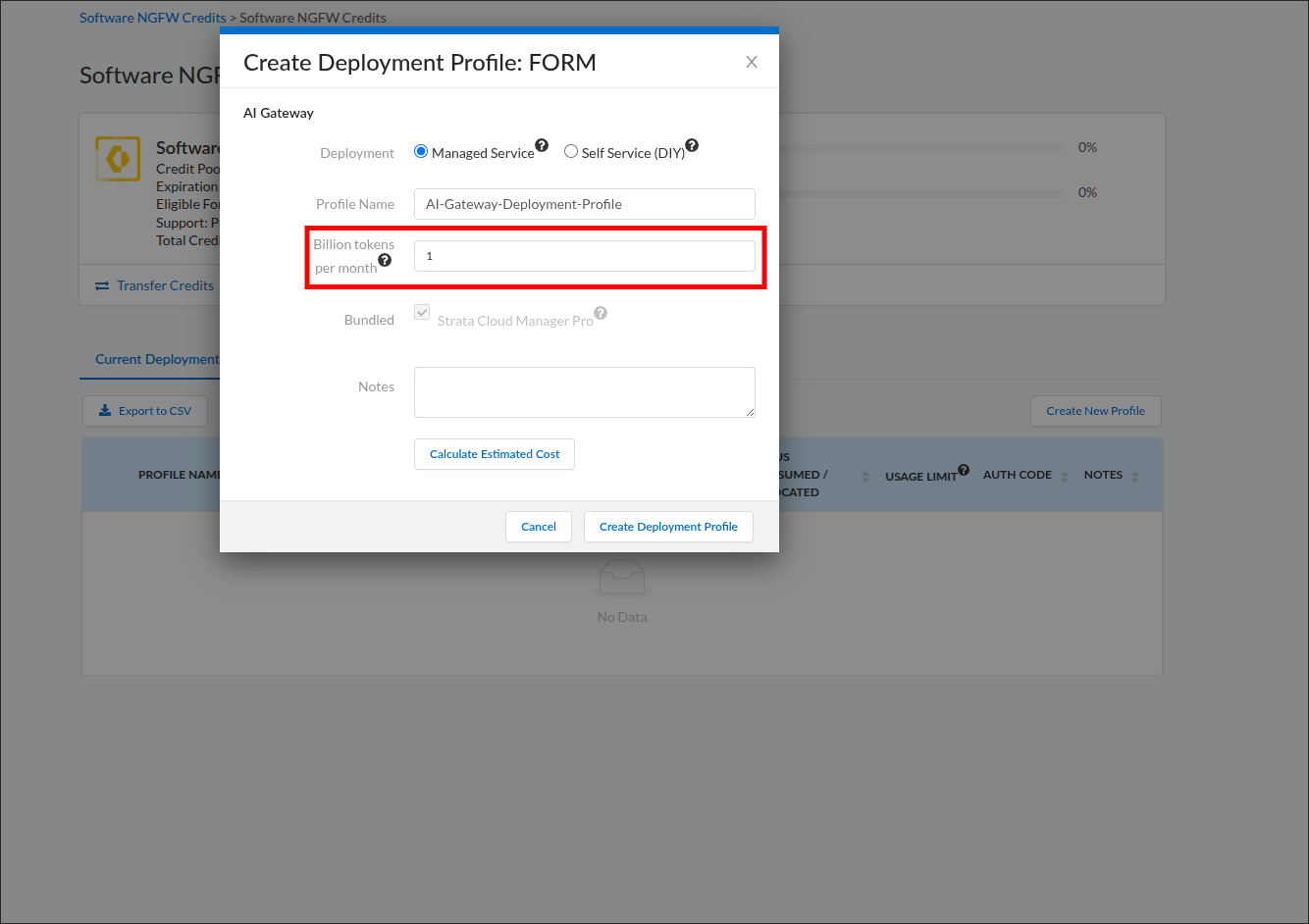
You have a single number in billions of tokens per month (with growth headroom) to type into the Billion tokens per month field in the next step. Round up to a whole number of billions; enter 1 for anything under one billion. The field takes whole billions only, in steps of one billion, and rejects fractional values.
The deployment profile is the licensing object that funds AI Gateway. You create it in the Customer Support Portal (not Strata Cloud Manager), from the credit pool that holds your flex credits. Creating it and finishing setup (next step) is what activates the gateway for your tenant.
- Log in to the Palo Alto Networks Customer Support Portal.
- In the left navigation, expand Products and select Software NGFW Credits. (Flex credits for every Software NGFW and Prisma AIRS product, AI Gateway included, come from the same pools, so this is the right page.)
- Locate the credit pool that will fund the gateway and click its name (or its row) to open the pool page; if several are listed, open the one with the most remaining credits. Item 8 shows how many credits this profile will draw; if that number exceeds the pool's remaining credits, close the dialog without creating the profile and repeat from this item with another pool. The pool page shows total credits, the allocated and consumed meters, the expiration date, and, at the bottom, the Current Deployment Profiles table.
- Before creating anything, scroll to the Current Deployment Profiles table. If a row with product type AI-GW and the Profile Name you chose (or planned to choose) already exists from an earlier attempt, do not create another; it already holds a credit allocation. Skip to Licensing step 3 and use that row's Finish Setup link. An AI-GW row with a different name belongs to another deployment; leave it alone and create yours. If you created a profile by mistake, open the vertical ellipsis (More Options) at the far right of its row and select Delete; Palo Alto Networks documents this control for other Software NGFW credit profiles, including Prisma AIRS ones. If the menu offers no Delete, open an admin case in the Customer Support Portal or ask your account team to remove the profile and return its credits.
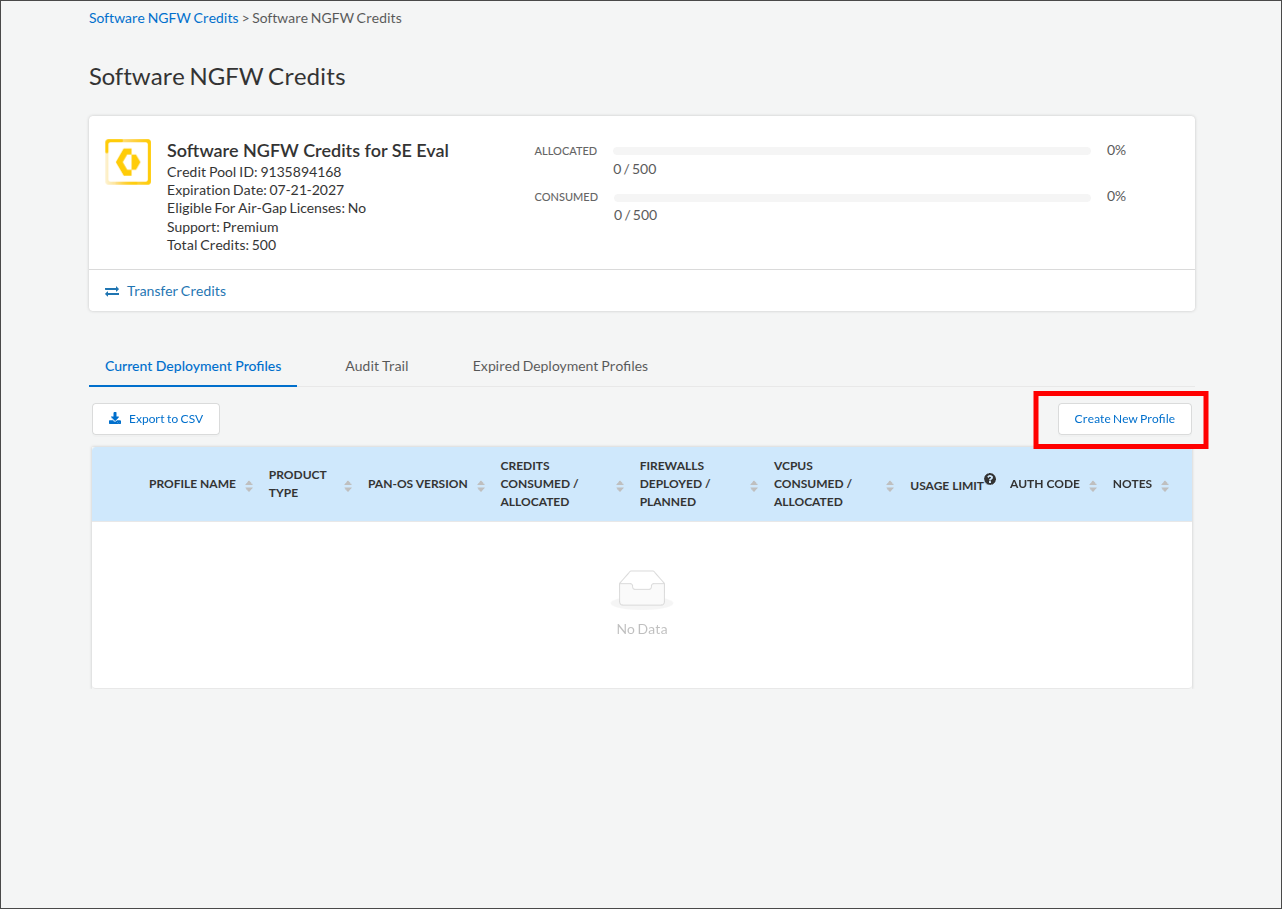
- Click Create New Profile (above the Current Deployment Profiles table).
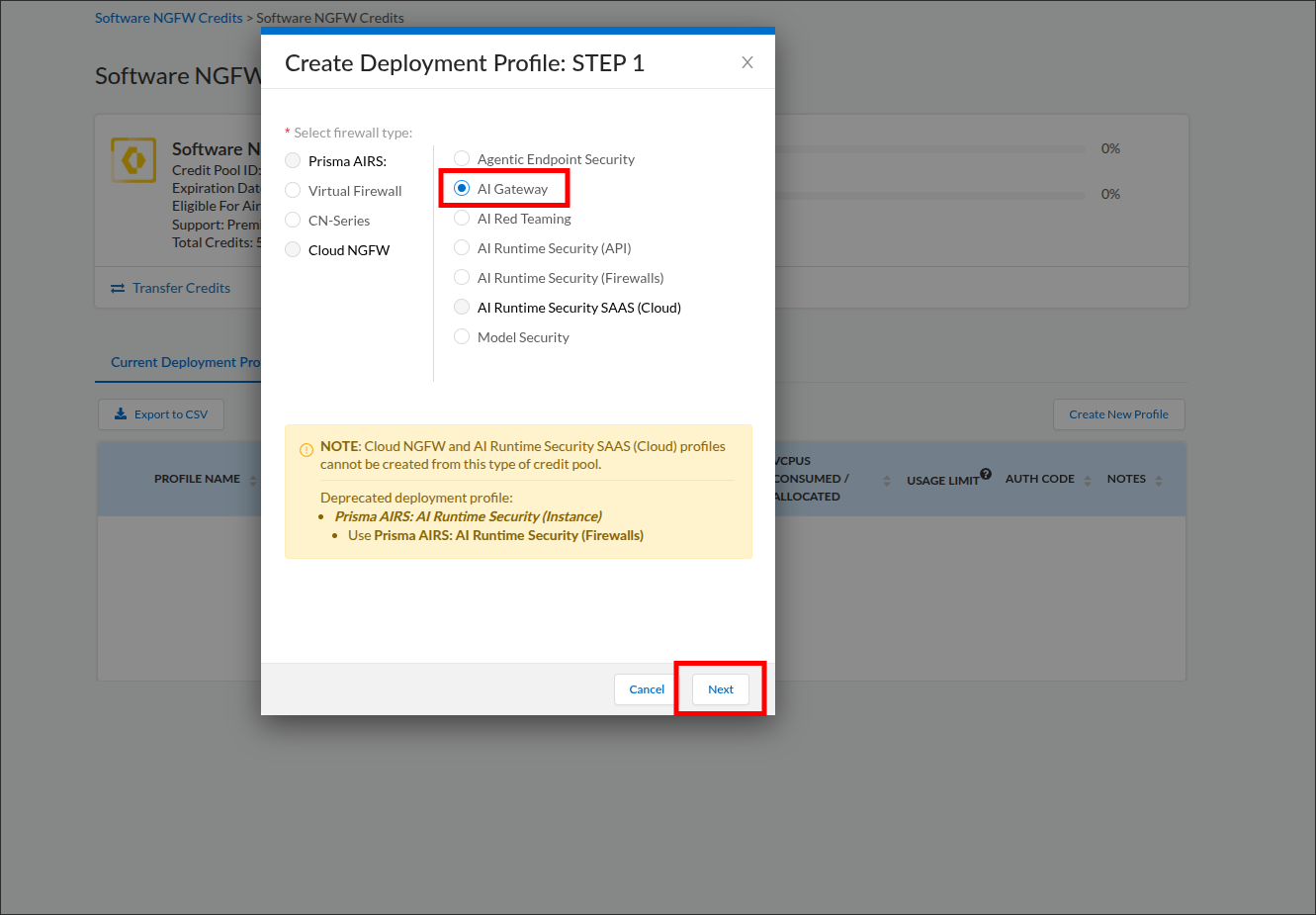
- In the Create Deployment Profile: STEP 1 dialog, the products are laid out in labeled columns. Find the column headed Prisma AIRS: and click AI Gateway within it so its option is selected. The dialog calls this the firewall type because the same wizard provisions Software NGFW products; AI Gateway is not a firewall, and selecting it here is correct. Click Next.
- Complete the FORM stage:
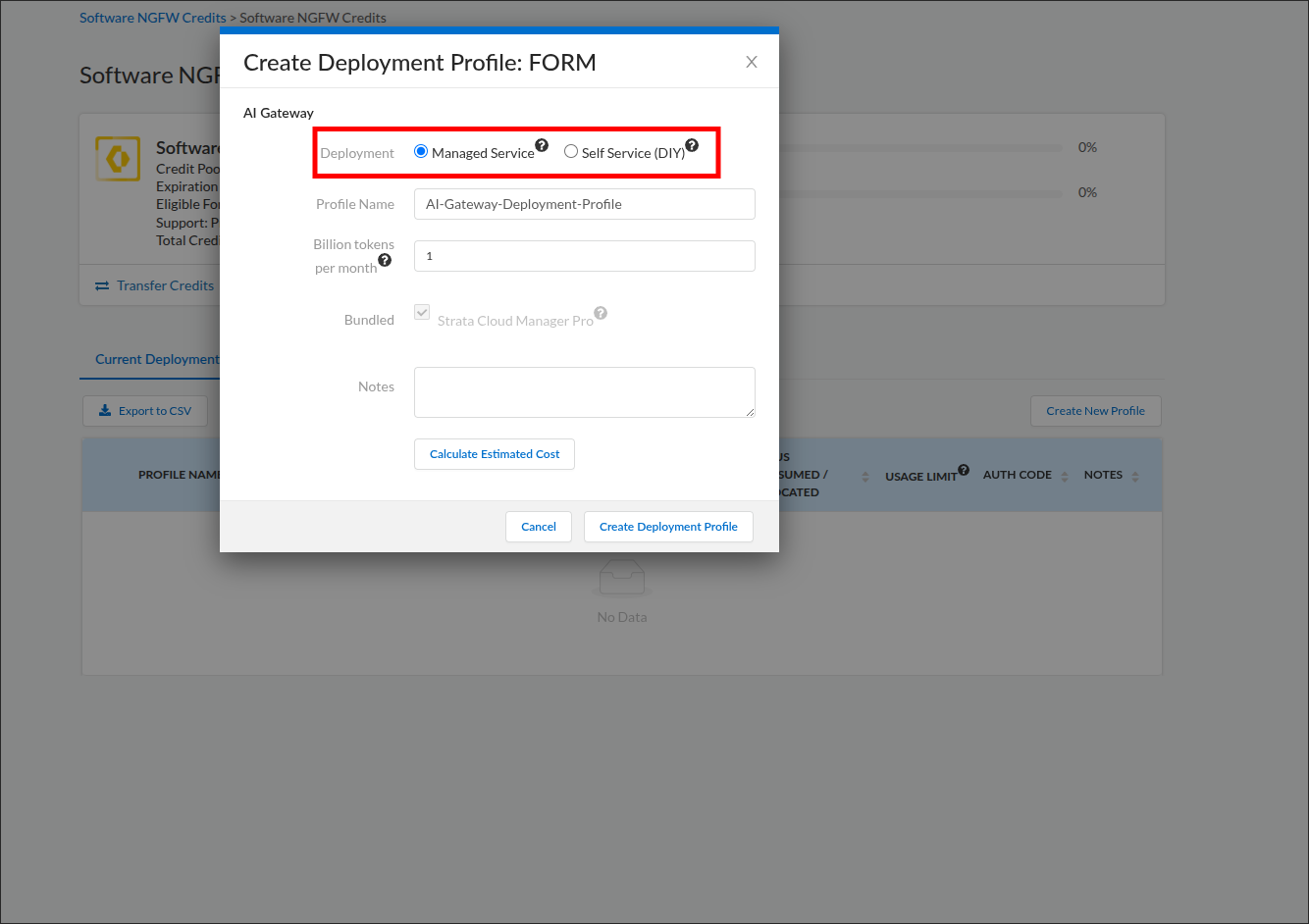
- Deployment — select the option matching your deployment model: Managed Service if you chose SaaS, Self Service (DIY) if you chose Hybrid. The field is informational and does not change the credit allocation or the usage limit; if undecided, choose Managed Service.
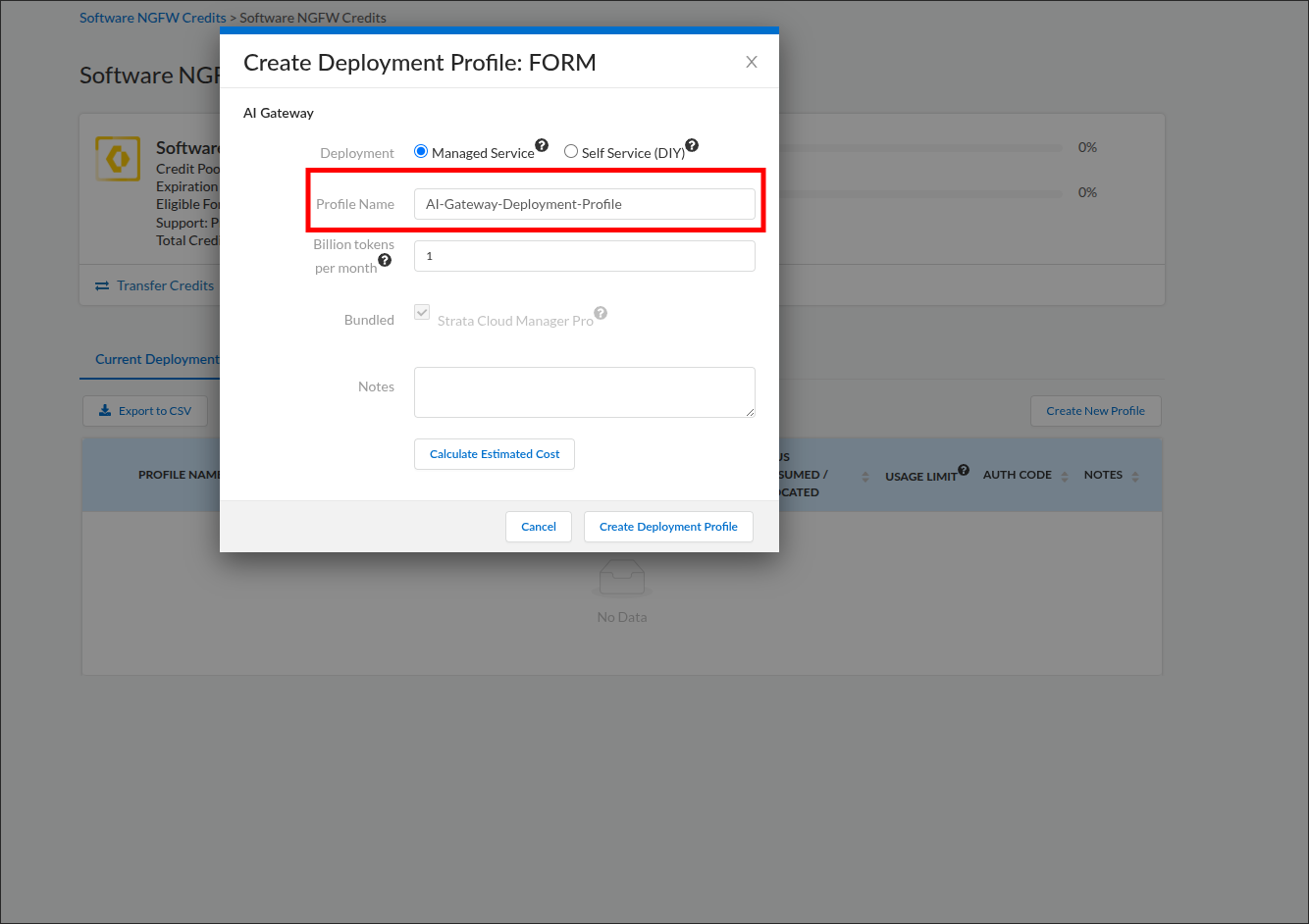
- Profile Name — a descriptive name, for example
AI-Gateway-Deployment-Profile. - Billion tokens per month — the billions figure you calculated in Licensing step 1.
- Bundled — no action needed. Strata Cloud Manager Pro is bundled with AI Gateway automatically and cannot be deselected. Its cost is included in the credit estimate you see in the next item, so that estimate covers more than AI Gateway alone.
- Notes — optional.
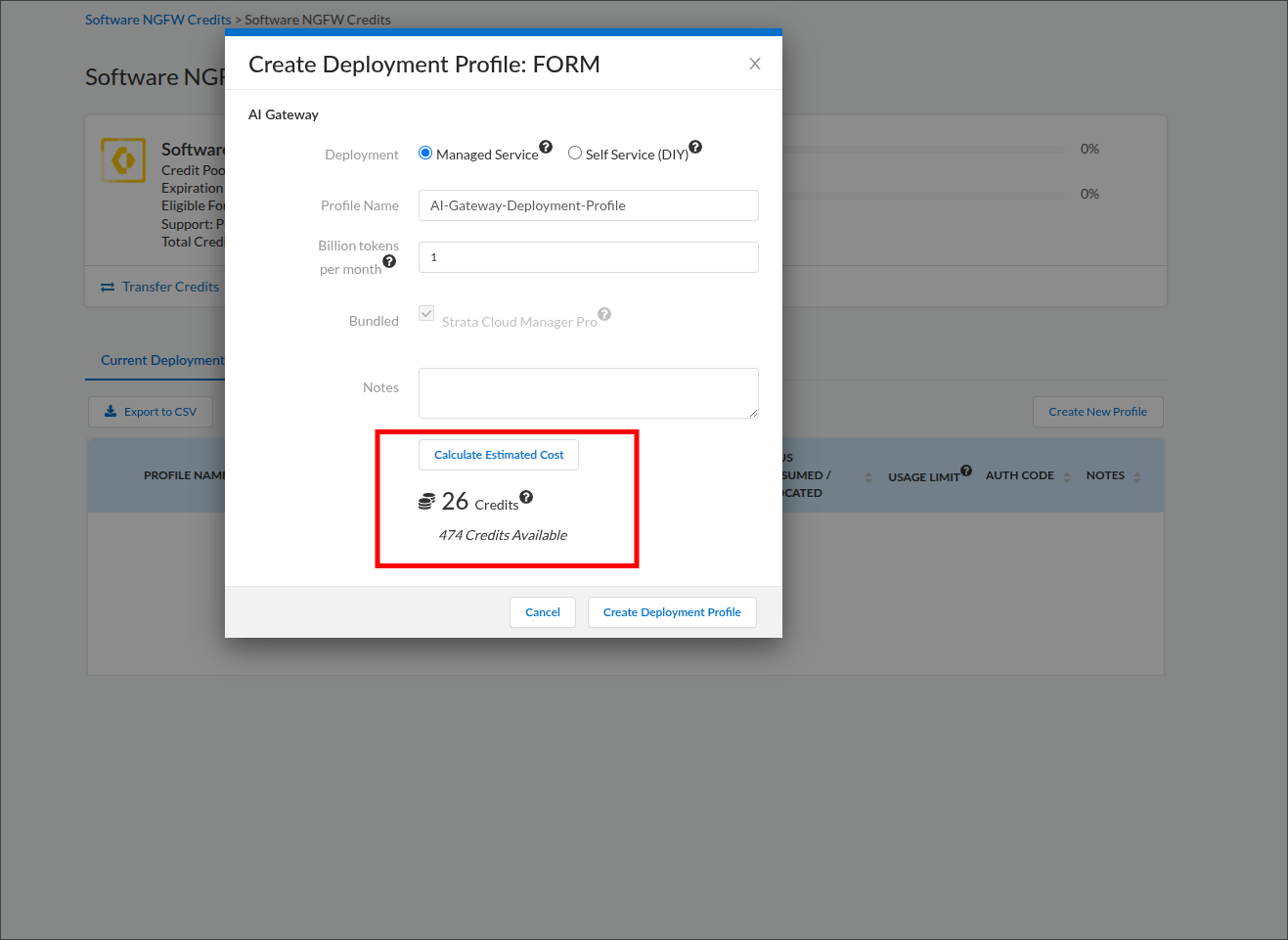
- Click Calculate Estimated Cost. The dialog shows how many credits this profile will draw and how many remain available in the pool; this is the flex credit allocation.
- Click Create Deployment Profile. The dialog closes and returns you to the Software NGFW Credits credit pool page, with your new profile listed in the Current Deployment Profiles table at the bottom.
Credit pool page with the Create New Profile button (steps 3 to 5):
STEP 1: find the Prisma AIRS column and select AI Gateway (step 6):
FORM: choose the Deployment type (step 7):
FORM: name the profile (step 7):
FORM: enter the monthly token volume (step 7):
Estimated cost in credits (step 8):
Created profile row (verification):
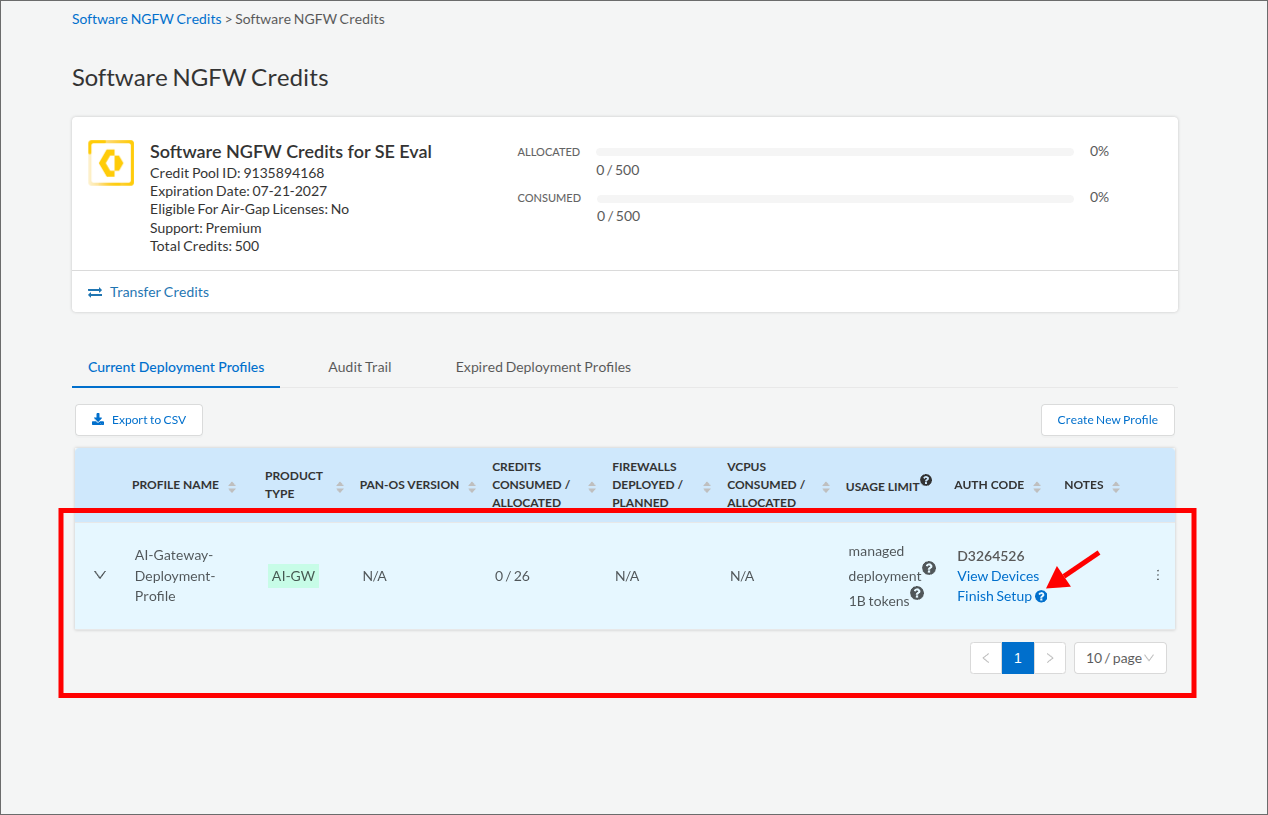
The new profile appears in the Current Deployment Profiles table with product type AI-GW, your credit allocation under Credits Consumed / Allocated, a usage limit reflecting your token volume, and an Auth Code. Nothing in this guide asks you to enter the Auth Code. Treat it as confidential: do not paste it into tickets, chat, or screenshots you share. The Finish Setup link on this row is the entry point for the next step.
Mapping the deployment profile to a Tenant Service Group (TSG) is the link that connects Strata Cloud Manager and the Strata Logging Service to your AI Gateway. The TSG you map becomes the AI Gateway organization. The activation form labels the TSG as the Tenant.
- On the same Software NGFW Credits credit pool page from Licensing step 2, scroll to the Current Deployment Profiles table and click the Finish Setup link on your AI-GW profile row. If you navigated away after the last step, get back via Products → Software NGFW Credits and reopen the same pool. The Activate Subscriptions based on Deployment Profile(s) page opens.
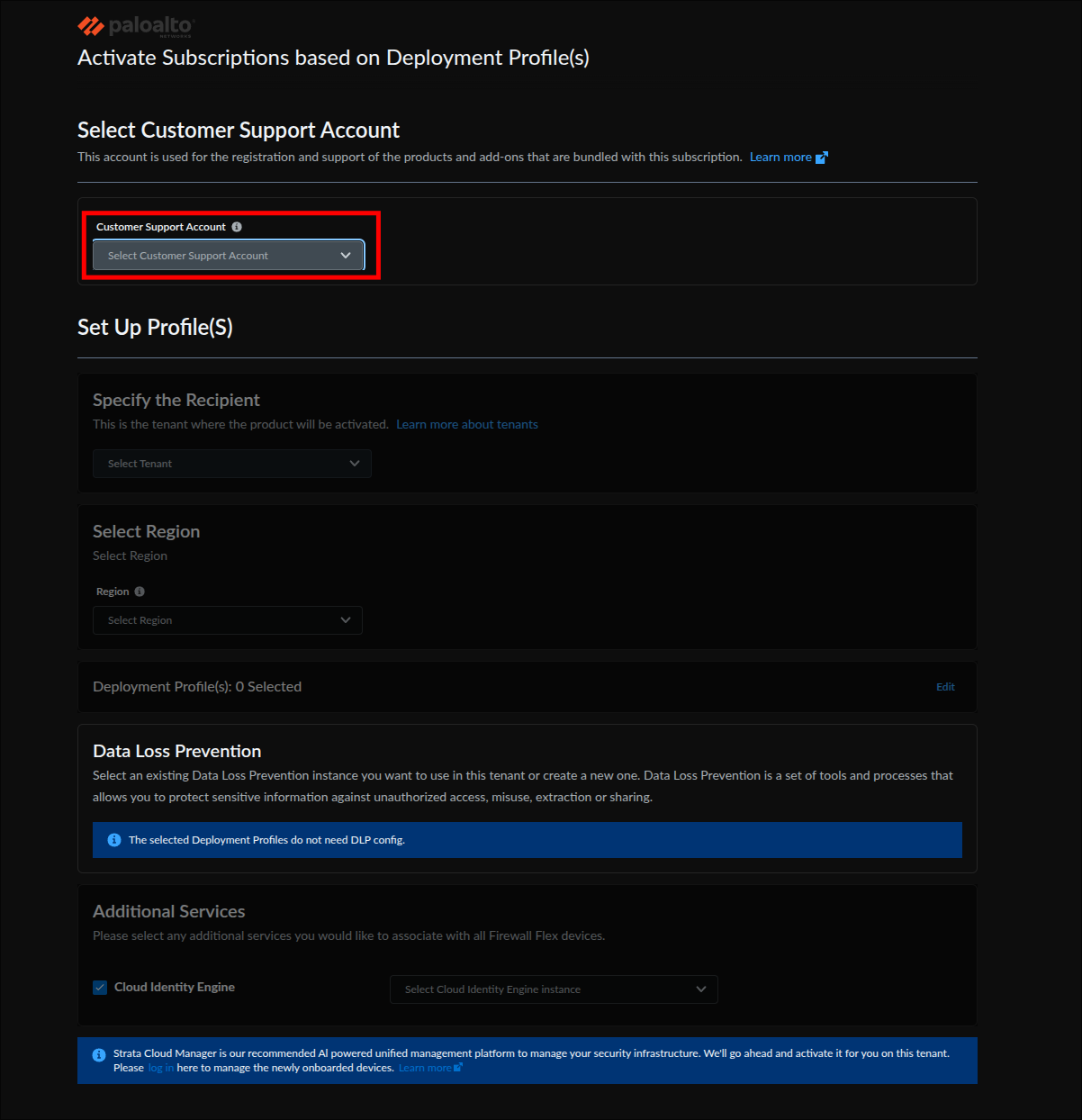
- Under Select Customer Support Account, choose the support account used to create the deployment profile.
- Under Specify the Recipient, select the Tenant that will own the gateway. This is the TSG. To confirm which name is yours, open the hub with the account you used in the prerequisites above, select Common Services → Tenant Management, find the tenant you work in, and select the matching Tenant here. If only one tenant is listed, select it.
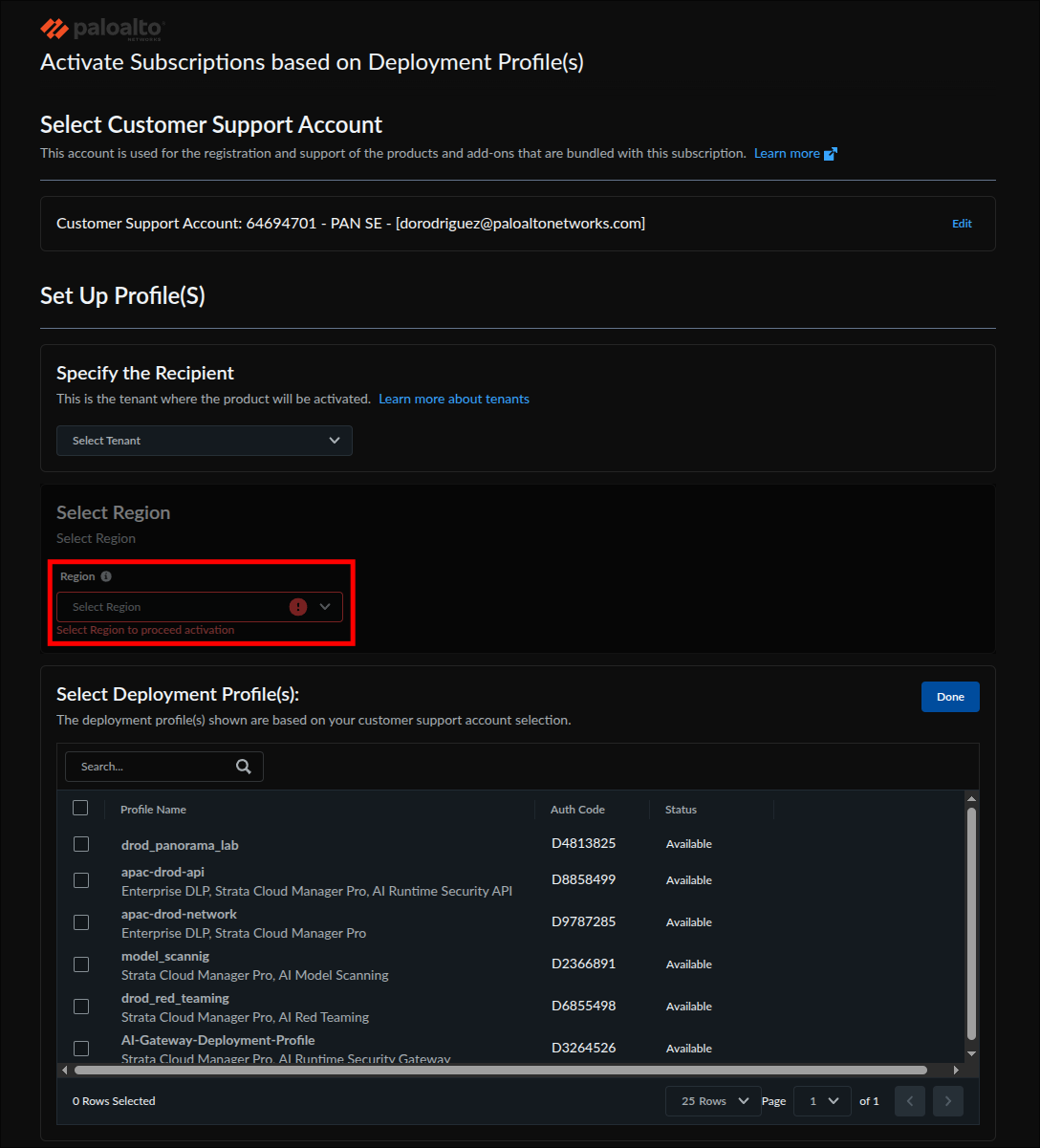
- Under Select Region, choose your region (for example, United States - Americas). The form will not proceed without it.
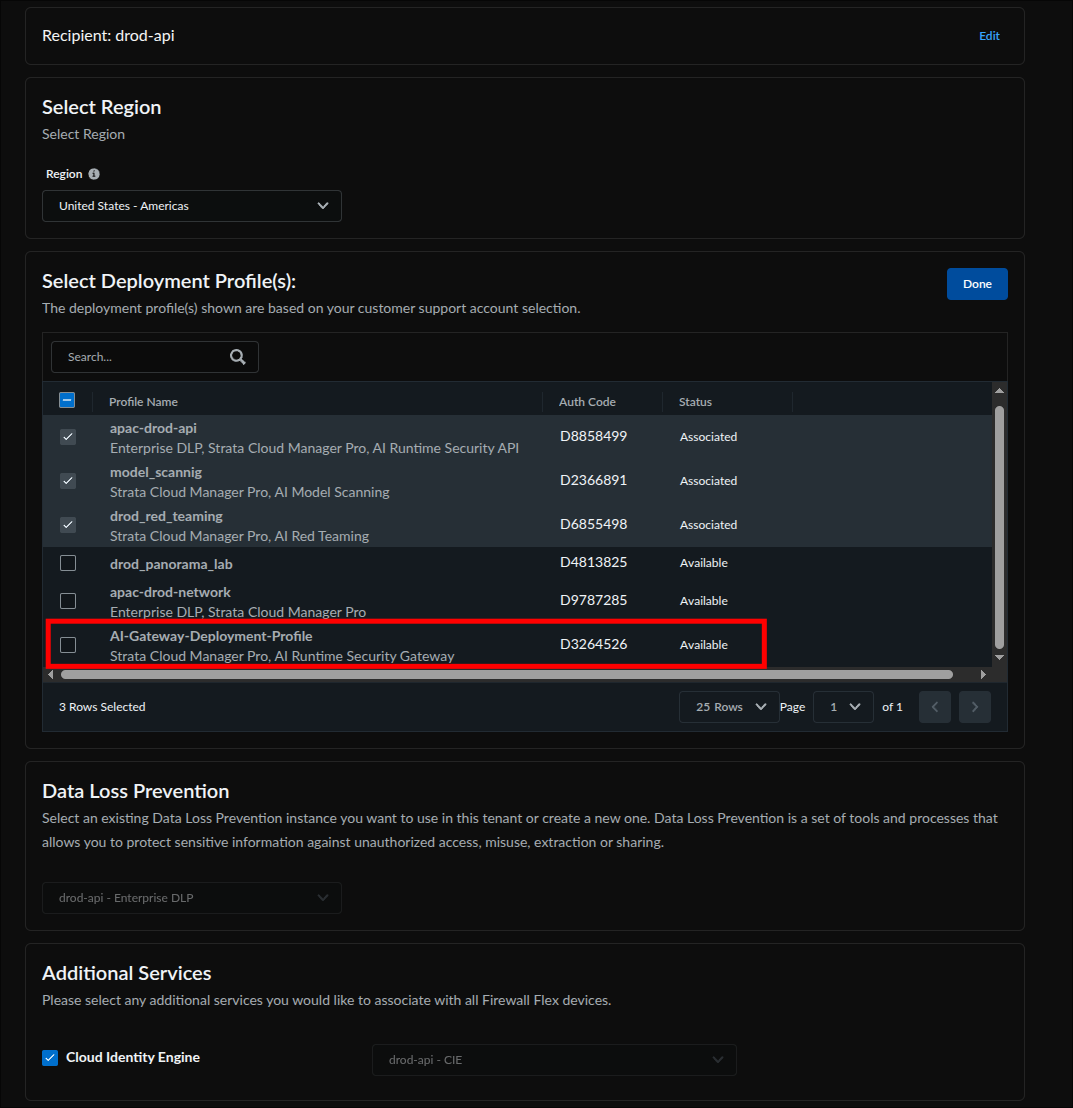
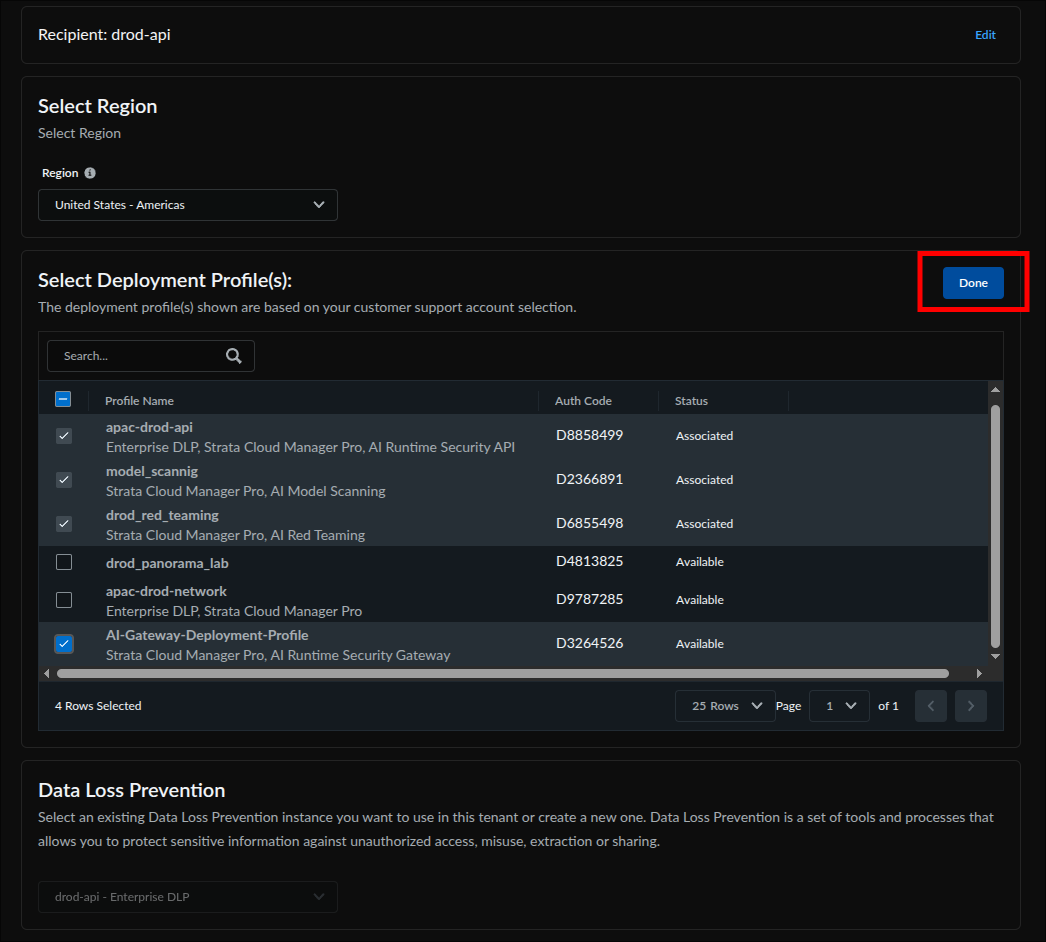
- Under Select Deployment Profile(s), check the AI Gateway profile you created (its services column reads Strata Cloud Manager Pro, AI Runtime Security Gateway). Profiles already associated with this tenant are pre-checked; leave them checked, so the selected count will read higher than one. Unchecking a pre-checked profile removes its association when you activate. Click Done.
- Leave Data Loss Prevention and Additional Services (including Cloud Identity Engine) at their pre-populated defaults; AI Gateway uses neither. A greyed-out DLP field is expected.
- Check Agree to the Terms and Conditions, then click Activate.
Activation page: select the Customer Support Account (step 2):
Region is required before activation can proceed (step 4):
Locate the AI Gateway profile in the deployment profile table (step 5):
Check the AI Gateway profile and click Done; the other checked rows are existing associations, left in place on purpose (step 5):
Leave DLP and Cloud Identity Engine at their pre-populated defaults (step 6):
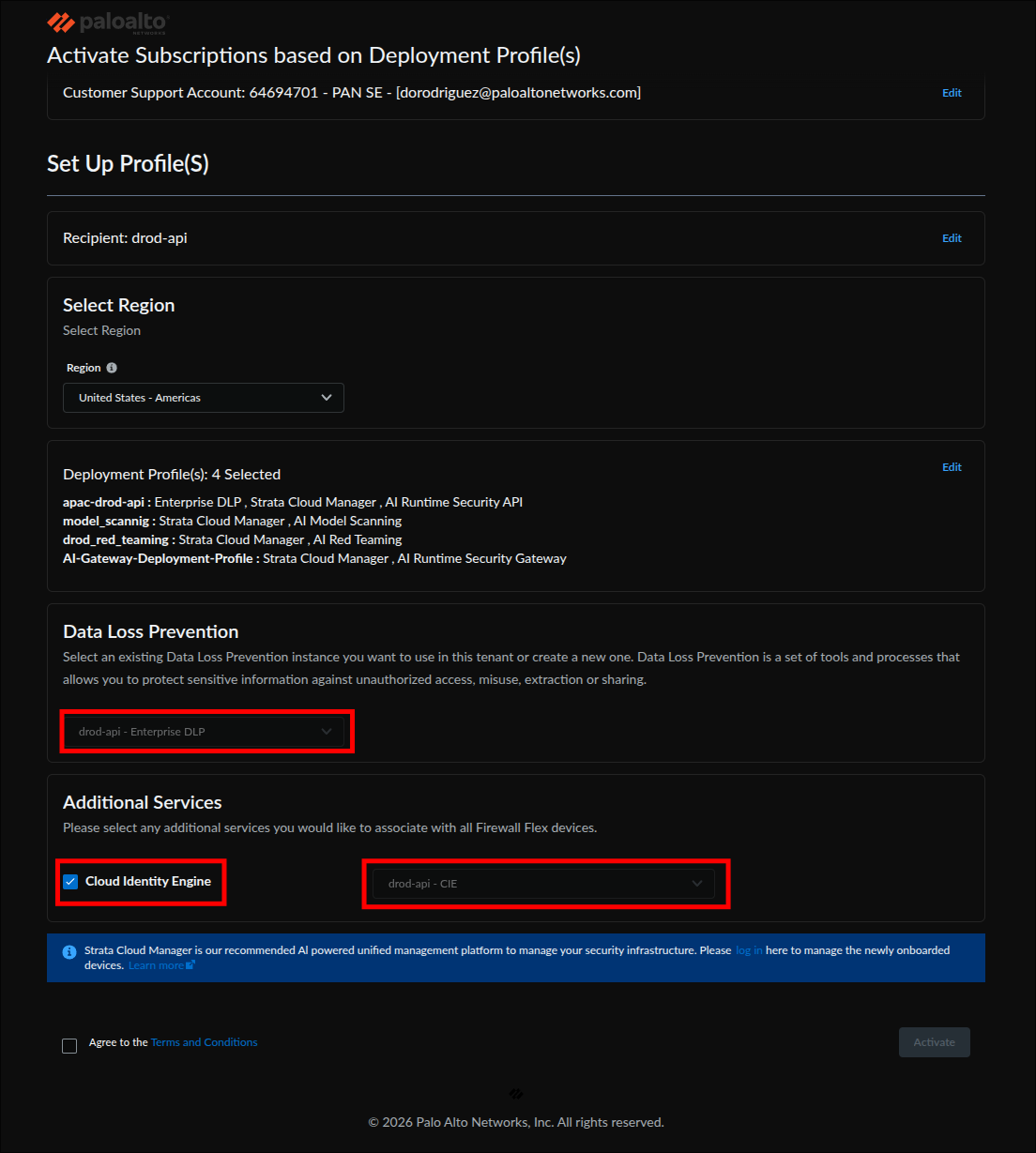
Agree to the terms and activate (step 7):
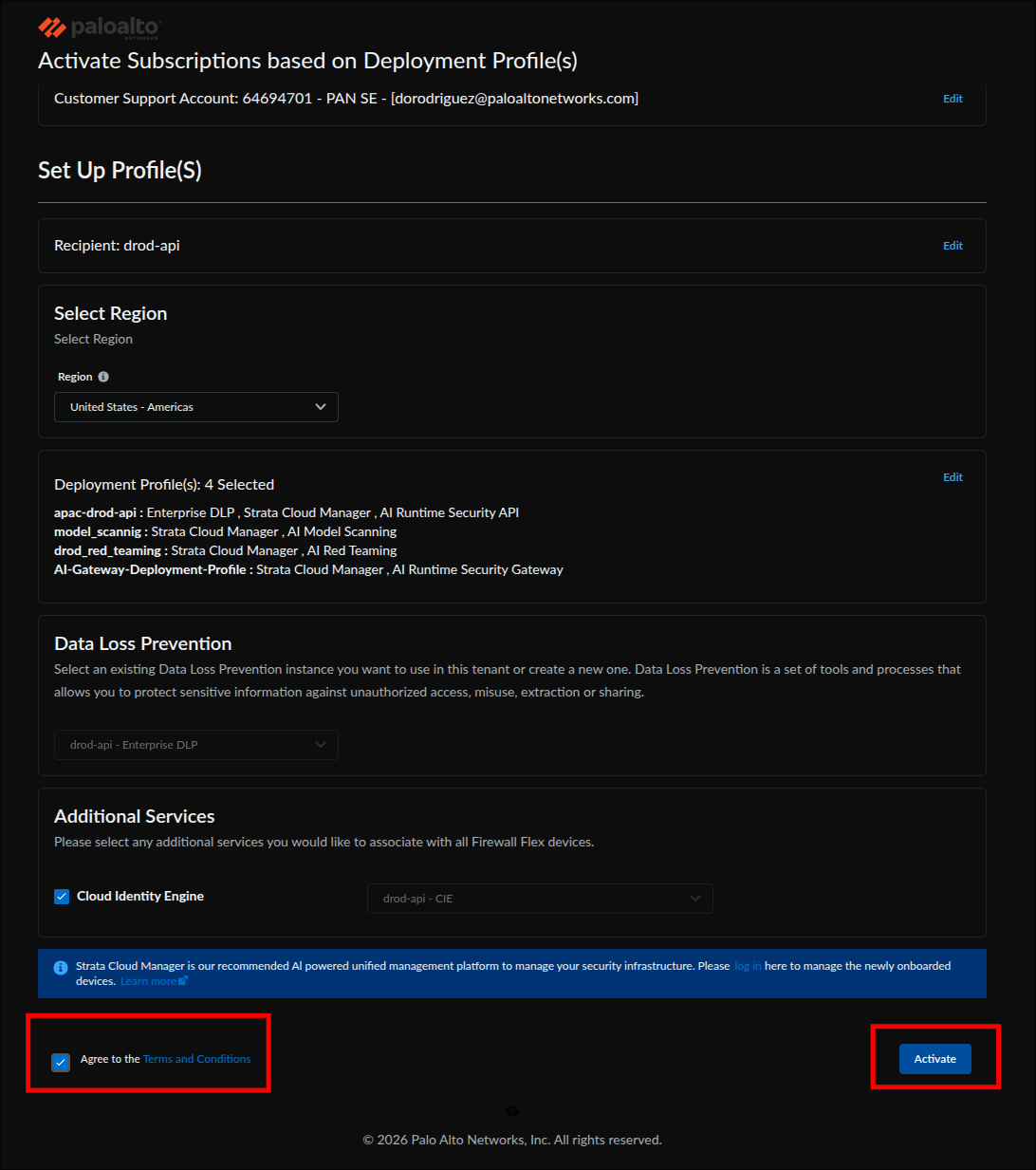
To check whether activation already happened, open Products → Software NGFW Credits, open the pool, and look at the AI-GW row: an activated profile shows the tenant it was associated with. If it does, do not run this step again; go to Licensing step 4 and wait out the delay there. Re-opening the activation form on an already-associated profile shows it pre-checked; clicking Activate again with it checked is harmless, but unchecking it removes the association.
After you click Activate, the form submits without an error message. If an error banner appears instead, correct the field it names and click Activate again. SCM and SLS are now linked to the gateway, which also enables Threat Log visibility in the SLS dashboard later. The functional check is the AI Gateway card appearing in Licensing step 4.
With licensing in place, complete setup from inside SCM:
- Log in to Strata Cloud Manager.
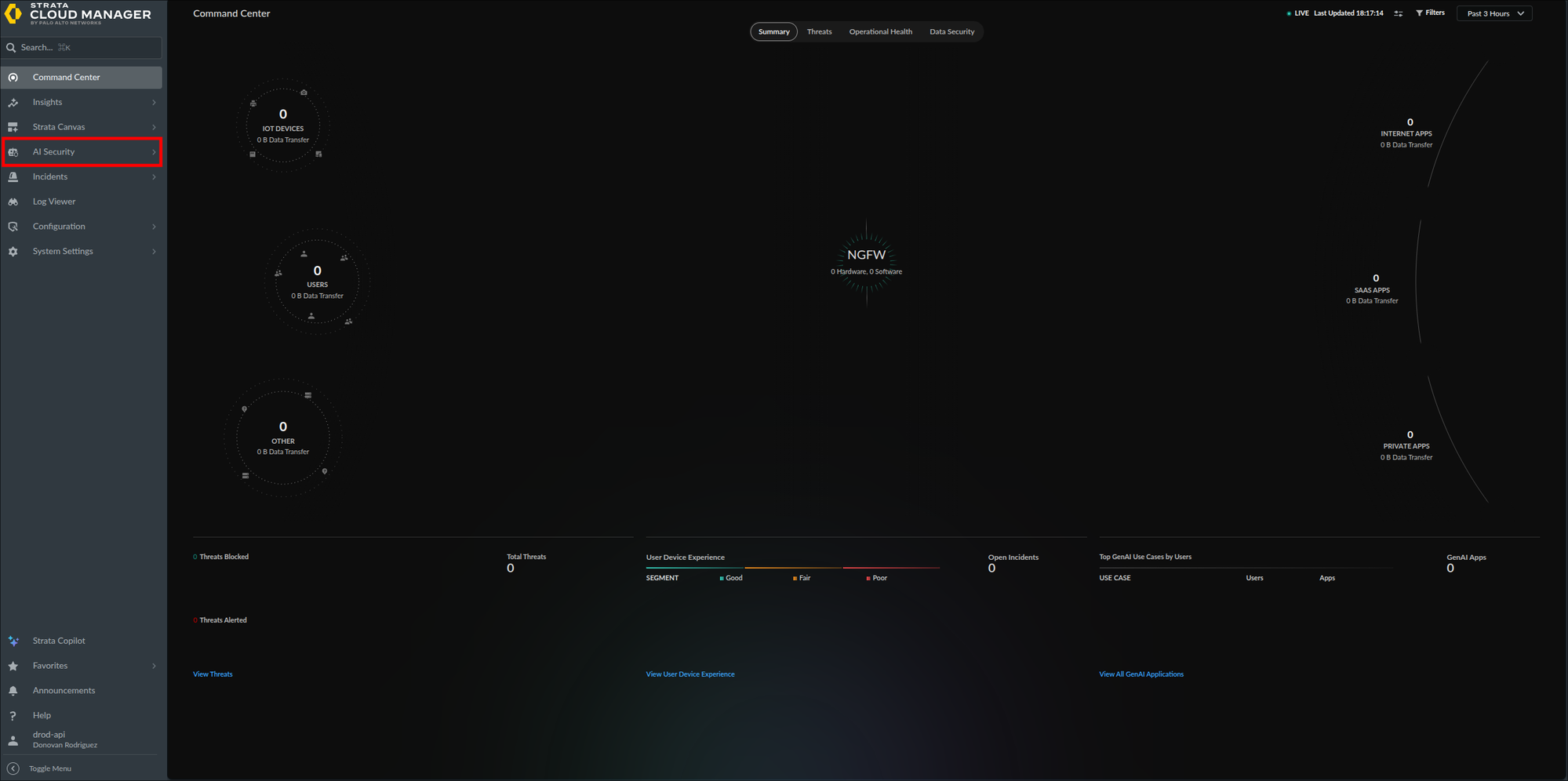
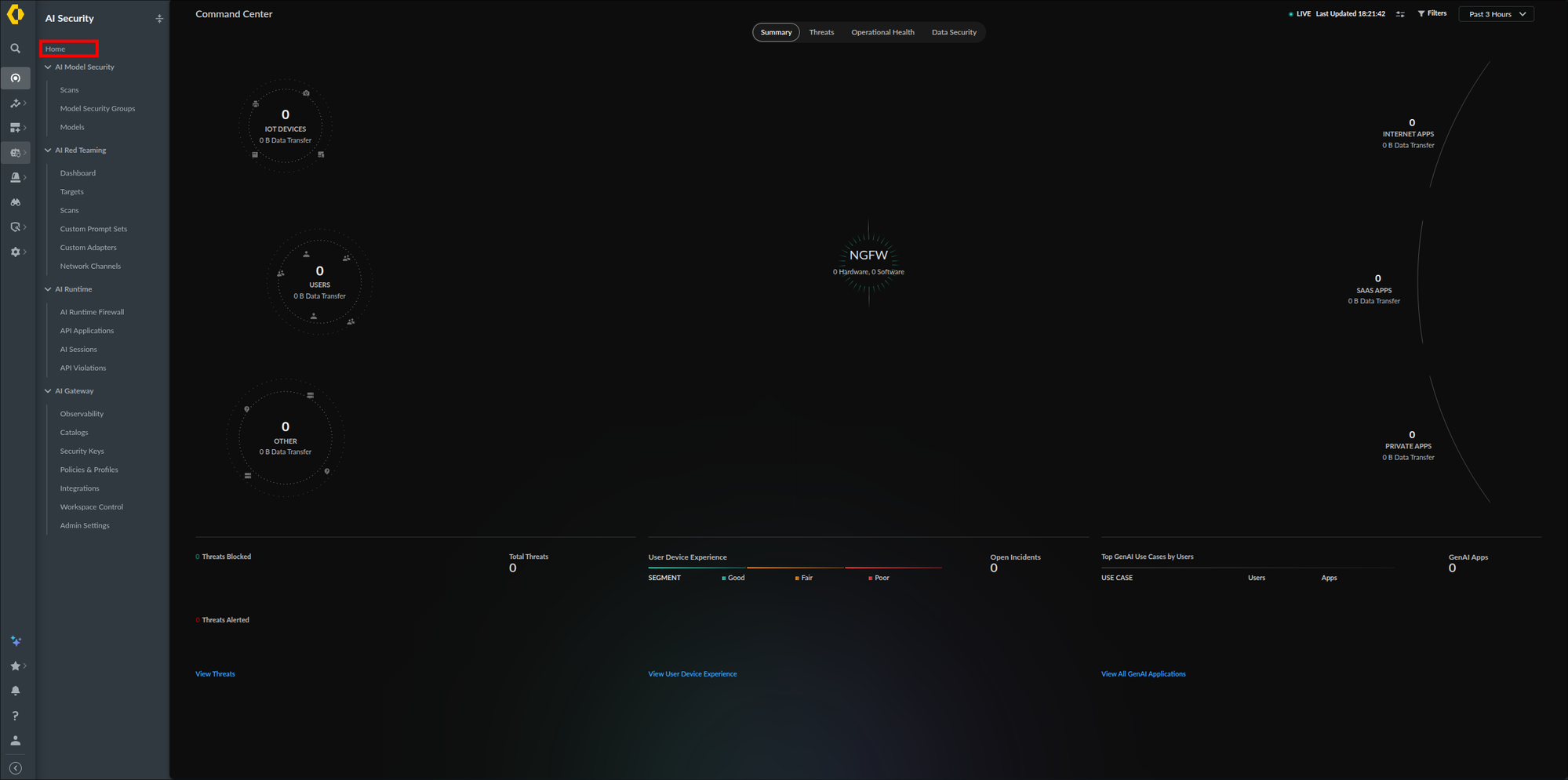
- In the left navigation, select AI Security → Home.
- On the Home page, locate the AI Gateway card under Select a feature to begin onboarding. On a fresh tenant (status Not Started) it offers three actions: Go to Gateway Registration, Launch AI Gateway, and Deploy Hybrid. Seeing the card is all you need here; this guide installs the data plane with Terraform rather than through those actions.
The AI Security entry in the left navigation (step 2):
The AI Security menu with Home at the top and the AI Gateway section below (step 2):
The AI Gateway onboarding card with its three actions (step 3):
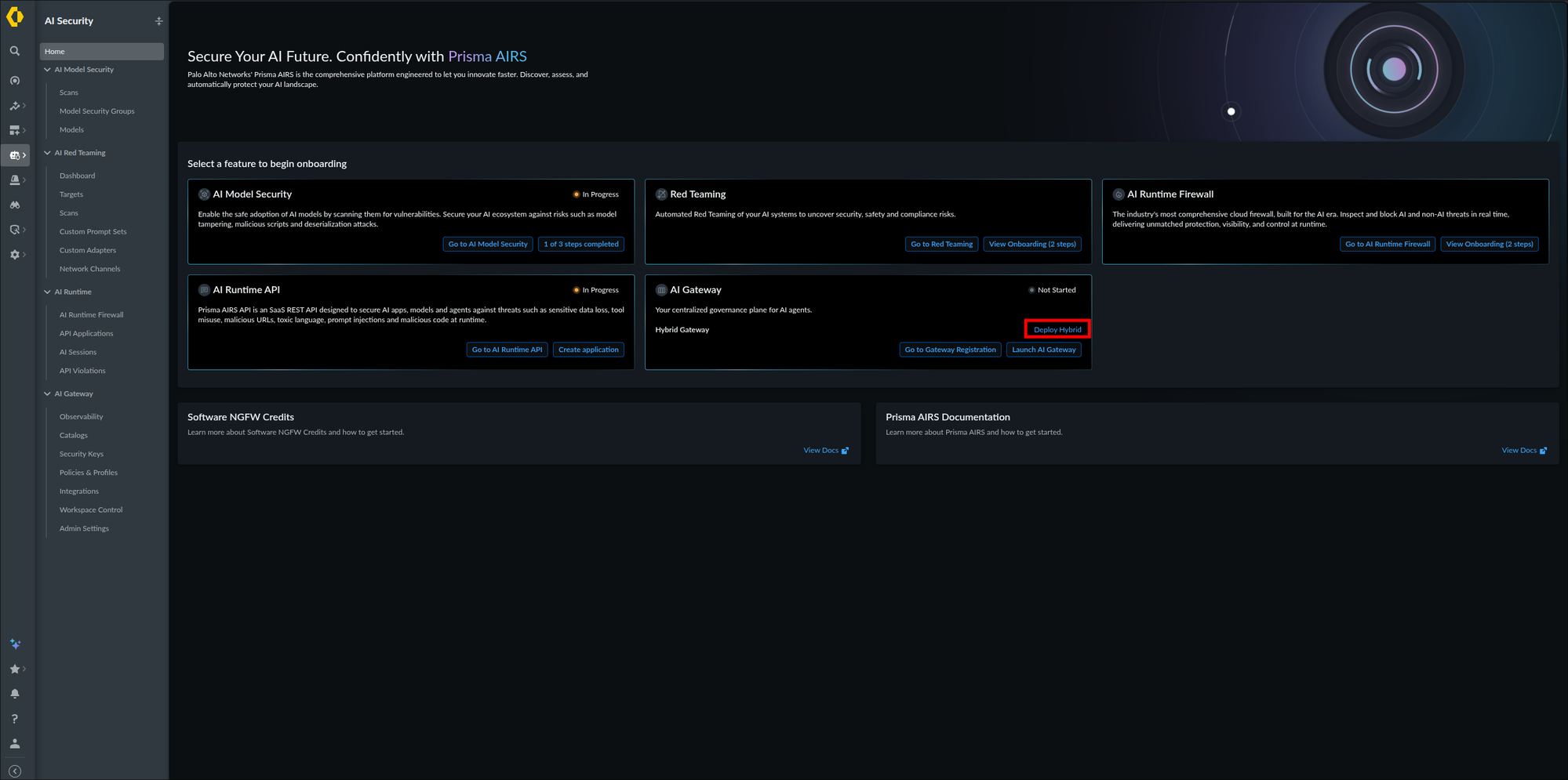
The AI Gateway card appears on the AI Security Home page, confirming the deployment profile and TSG mapping took effect. On a fresh tenant it reads Not Started with all three actions; if an earlier attempt already registered a gateway or launched the console, the status and the action set differ, and that is fine. If the card itself is absent, wait up to 30 minutes (the deployment profile to TSG association can take that long), refresh, then recheck Licensing step 2 and Licensing step 3.
1. Prepare Secrets
The secrets go in before Terraform runs. The module reads them by reference, so this ordering is not optional.
Two secrets are needed: one holding the Docker registry credentials, one holding the Client Auth Key and Organisation ID.
Replace every angle-bracket placeholder with the real value before running these commands. The commands succeed with the placeholder text in place, and the failure only surfaces later as an image pull error.
project_name=portkey-gateway      # a name for this deployment
environment=dev                   # the environment name
aws_region=us-east-1              # the region you are deploying into

# Write the payloads to files. A --secret-string argument on the command
# line lands in your shell history and is readable in the process table.
cat > docker-credentials.json <<'JSON'
{"username":"<docker-username>","password":"<docker-password>"}
JSON

cat > client-org.json <<'JSON'
{"PORTKEY_CLIENT_AUTH":"<client-auth>","ORGANISATIONS_TO_SYNC":"<organisation-id>"}
JSON

# Docker credentials issued by Palo Alto Networks
aws secretsmanager create-secret \
  --name ${project_name}/${environment}/docker-credentials \
  --region ${aws_region} \
  --kms-key-id <your-kms-key-id> \
  --secret-string file://docker-credentials.json

# Client Auth Key and Organisation ID
aws secretsmanager create-secret \
  --name ${project_name}/${environment}/client-org \
  --region ${aws_region} \
  --kms-key-id <your-kms-key-id> \
  --secret-string file://client-org.json

# Delete the files once both commands have succeeded
rm -f docker-credentials.json client-org.jsonThe --kms-key-id value is a customer-managed KMS key in the same region. Delete the two files as shown, and check your shell history for any earlier attempt that passed a value inline.
A CloudFormation template is published as an alternative: cloudformation/secrets.yaml in the portkey-gateway-infrastructure repository. It takes the same values as parameters and emits the same two ARNs as stack outputs.
Both commands print an ARN. Record them. You need them in step 2, and the module will not accept anything else in their place.
aws secretsmanager list-secrets --region ${aws_region} \
  --query "SecretList[?starts_with(Name,'${project_name}/${environment}')].[Name,ARN]" \
--output tableTwo rows come back. If you see one, the second create-secret failed, most often because a secret of that name already exists or is pending deletion from an earlier attempt.
create-secret is not a re-runnable command. Pick the case that matches the error:
# ResourceExistsException: the secret exists. Write a new version into it.
aws secretsmanager put-secret-value \
  --secret-id ${project_name}/${environment}/client-org \
  --region ${aws_region} \
  --secret-string file://client-org.json

# InvalidRequestException: the secret is scheduled for deletion. Restore it,
# then write the value with put-secret-value above.
aws secretsmanager restore-secret \
  --secret-id ${project_name}/${environment}/client-org \
  --region ${aws_region}

# Or purge it and create it again from scratch. This is not recoverable.
aws secretsmanager delete-secret \
  --secret-id ${project_name}/${environment}/client-org \
  --region ${aws_region} \
--force-delete-without-recoveryRe-run the list command and confirm two rows before moving to step 2.
The secrets block in the Terraform module takes Secrets Manager ARNs. The ECS task definition references the ARN and AWS injects the value at task start. Pasting the raw secret into that block puts your Client Auth Key into Terraform state in plain text.
create-secret sets no access control of its own, so both secrets are readable by any principal in the account that holds the default Secrets Manager permissions. Before step 2, encrypt each secret with a customer-managed KMS key as shown above, attach a resource policy that limits secretsmanager:GetSecretValue to the ECS task execution role and the small set of humans who need it, and leave the default 30-day recovery window in place so an accidental delete is reversible.
The Key Vault needs RBAC authorization enabled, and you need a role that can write secrets on it before you begin.
Replace every angle-bracket placeholder with the real value before running these commands. The commands succeed with the placeholder text in place, and the failure only surfaces later as an image pull error. List your subscriptions first if you do not have the ID to hand:
az account list --query "[].{name:name,id:id}" -o tableThe id column is the subscription ID the next block needs.
az login
sub_id=<your-subscription-id>
az account set --subscription ${sub_id}

rg=portkey-rg                    # resource group name
kv=portkey-kv-<unique-suffix>    # must be globally unique across all of Azure

# If the resource group already exists, this returns its details and changes nothing.
az group create --name ${rg} --location eastus

az keyvault create \
  --name ${kv} \
  --resource-group ${rg} \
  --location eastus \
  --enable-rbac-authorization true

user_id=$(az ad signed-in-user show --query id -o tsv)

az role assignment create \
  --role "Key Vault Secrets Officer" \
  --assignee ${user_id} \
--scope "/subscriptions/${sub_id}/resourceGroups/${rg}/providers/Microsoft.KeyVault/vaults/${kv}"A Key Vault name lives in a global DNS namespace, so portkey-kv on its own will usually be taken, and Azure holds a deleted name for 90 days. If az keyvault create reports the name is in use and the vault was yours, recover or purge it:
az keyvault recover --name ${kv}
az keyvault purge --name ${kv} # only if you want the name back emptyRecovering keeps the secrets you already wrote, so check az keyvault secret list --vault-name ${kv} before writing them again.
Now write the four secrets. The names matter: the module looks them up by name, and these are the names its examples expect. These commands reuse the variables set above, so if you are resuming in a new terminal, set sub_id, rg, and kv again before running them.
az keyvault secret set --vault-name ${kv} --name docker-username        --value "<docker-username>"
az keyvault secret set --vault-name ${kv} --name docker-password        --value "<docker-password>"
az keyvault secret set --vault-name ${kv} --name portkey-client-auth    --value "<client-auth>"
az keyvault secret set --vault-name ${kv} --name organisations-to-sync --value "<organisation-id>"az keyvault secret list --vault-name ${kv} --query "[].name" -o tsvFour names come back, matching the four above exactly. A role assignment can take a minute to propagate, so a Forbidden error on the first secret set usually means you ran it too quickly rather than that the assignment failed.
Two identities are involved, and only one of them is yours. The module creates a user-assigned managed identity and grants it Key Vault Secrets User on this vault, and that is the identity Container Apps uses to resolve each secret reference at runtime. Your own principal is separate: it needs Key Vault Secrets Officer to write the secrets above, and it needs read access on every later terraform apply, because the module reads the Docker username through a data block as the deploying principal.
Once the secrets are written you can drop from Officer to Key Vault Secrets User with az role assignment delete --role "Key Vault Secrets Officer" --assignee ${user_id} --scope <vault-scope> followed by an assignment of the lesser role. Do not remove your access altogether while you still plan to run Terraform against this vault, or the next apply fails with a Key Vault Forbidden error on the Docker username lookup. Verified against terraform/aca at v1.1.3.
az keyvault create leaves the vault reachable from any network and readable by anyone holding a subscription-wide role. Before step 2, turn on purge protection and soft delete, restrict network access to your own ranges and the deployment network with az keyvault network-rule add and a --default-action Deny, and encrypt the vault with a customer-managed key if your policy requires one. Keep the RBAC grants on this vault to the deploying principal and the small set of humans who need them.
The secrets block in the Terraform module takes Key Vault secret names. The module turns each name into a Key Vault reference against the vault named in secrets_key_vault, and Container Apps resolves it at runtime using the managed identity. Pasting a raw value into that block puts your Client Auth Key into Terraform state in plain text, and the reference it builds will not resolve.
2. Deploy with Terraform
One module call builds the whole data plane. The configuration below is a single-task first deployment: a two-Availability-Zone network, one gateway task, a log store, a load balancer, and secrets by reference. It is deliberately below the availability requirements in the previous section so that the first apply is small and quick. Before it carries real traffic, raise the task or replica count and enable autoscaling as described under Scaling and Upgrades.
The configuration in 2.2 creates a load balancer, so settle the type before you apply it. Changing the type afterwards replaces the load balancer rather than editing it, and the replacement takes a new DNS name with it.
| You need | Use |
|---|---|
| TLS termination, WAF, access logs | ALB |
Host-based routing, required when server_mode = "all" | ALB |
| Layer-4 pass-through and lowest latency | NLB |
Set lb_type to match your answer in 2.2, then use the matching block in step 3.1 for the listener details.
mkdir portkey-gateway-deployment
cd portkey-gateway-deploymentThis guide uses remote state throughout, so create the bucket now. The main.tf in step 2.2 and the terraform init command in step 2.3 both expect it. State for this module contains resource identifiers and configuration, so treat the bucket as sensitive.
The bucket name below embeds your AWS account ID. Read it with:
aws sts get-caller-identity --query Account --output textaws s3api create-bucket \
--bucket portkey-tfstate-<account-id> \
--region us-east-1
aws s3api put-bucket-versioning \
--bucket portkey-tfstate-<account-id> \
--versioning-configuration Status=Enabled
aws s3api put-public-access-block \
--bucket portkey-tfstate-<account-id> \
--public-access-block-configuration \
BlockPublicAcls=true,IgnorePublicAcls=true,BlockPublicPolicy=true,RestrictPublicBuckets=true
aws s3api put-bucket-encryption \
--bucket portkey-tfstate-<account-id> \
--server-side-encryption-configuration \
'{"Rules":[{"ApplyServerSideEncryptionByDefault":{"SSEAlgorithm":"aws:kms","KMSMasterKeyID":"<your-kms-key-id>"},"BucketKeyEnabled":true}]}'
# Refuse any request that does not arrive over TLS
aws s3api put-bucket-policy \
--bucket portkey-tfstate-<account-id> \
--policy '{"Version":"2012-10-17","Statement":[{"Sid":"DenyInsecureTransport","Effect":"Deny","Principal":"*","Action":"s3:*","Resource":["arn:aws:s3:::portkey-tfstate-<account-id>","arn:aws:s3:::portkey-tfstate-<account-id>/*"],"Condition":{"Bool":{"aws:SecureTransport":"false"}}}]}'
# Versioning keeps every superseded state file, so expire the old ones
aws s3api put-bucket-lifecycle-configuration \
--bucket portkey-tfstate-<account-id> \
--lifecycle-configuration \
'{"Rules":[{"ID":"expire-noncurrent-state","Status":"Enabled","Filter":{},"NoncurrentVersionExpiration":{"NoncurrentDays":90}}]}'Create backend.config:
bucket = "portkey-tfstate-<account-id>"
key    = "portkey-gateway/dev.tfstate"
region = "us-east-1"The backend in step 2.2 uses S3 native locking. If an apply is interrupted, the lock stays behind and the next command fails with Error acquiring the state lock. Confirm that no other apply is running, then release the lock with the ID printed in the error and re-run the apply, which picks up where it stopped:
terraform force-unlock <LOCK_ID>
terraform applyDo not run terraform destroy first. A half-built VPC is safe to apply over, and destroying it loses the resources that did complete.
The configuration in 2.2 names a bucket for the log store. Create it now, in the same region as the gateway:
aws s3api create-bucket \
  --bucket portkey-logs-<account-id> \
  --region us-east-1

aws s3api put-public-access-block \
  --bucket portkey-logs-<account-id> \
  --public-access-block-configuration \
    BlockPublicAcls=true,IgnorePublicAcls=true,BlockPublicPolicy=true,RestrictPublicBuckets=true

aws s3api put-bucket-encryption \
  --bucket portkey-logs-<account-id> \
  --server-side-encryption-configuration \
'{"Rules":[{"ApplyServerSideEncryptionByDefault":{"SSEAlgorithm":"aws:kms","KMSMasterKeyID":"<your-kms-key-id>"},"BucketKeyEnabled":true}]}'The module attaches an IAM policy to the gateway task role granting s3:PutObject and s3:GetObject on the bucket you name in 2.2, so no further permission work is needed for the gateway itself. Read access for people is yours to set: restrict it to the specific roles that need to read prompt content, and add a retention lifecycle rule that matches your retention policy.
aws s3api get-bucket-encryption --bucket portkey-logs-<account-id>The command returns the encryption rule you set. If the bucket already exists, create-bucket reports that you already own it and no step here requires an empty bucket. Whether the gateway's write behavior differs against a bucket that already holds logs is not published, so use a new name if you need that guaranteed.
Substitute the two ARNs from step 1 and the log bucket you created in 2.1b. The docker-credentials ARN from the 1.1 verification goes into docker_cred_secret_arn; the client-org ARN goes into both keys of the secrets block. The allowed_lb_cidrs value is the only one with a security consequence: it is the set of CIDRs permitted to reach the load balancer, and for an internal load balancer the VPC CIDR is the usual answer.
Leave server_mode as gateway unless you are also publishing MCP servers through this deployment. Choosing all on ECS forces an Application Load Balancer, so if you already applied step 2.2 with lb_type = "network" this replaces the load balancer.
terraform {
  required_version = ">= 1.13"

  required_providers {
    aws = {
      source  = "hashicorp/aws"
      version = "~> 6.0"
    }
  }

  backend "s3" {
    use_lockfile = true
  }
}

provider "aws" {
  region = "us-east-1"

  default_tags {
    tags = {
      Environment = "dev"
      ManagedBy   = "Terraform"
      Project     = "portkey-gateway"
    }
  }
}

module "portkey_gateway" {
  source = "github.com/Portkey-AI/portkey-gateway-infrastructure//terraform/ecs?ref=v2.0.0"

  # Project
  project_name = "portkey-gateway"
  environment  = "dev"
  aws_region   = "us-east-1"

  # Docker credentials, by Secrets Manager ARN
  docker_cred_secret_arn = "<docker-credentials-arn>"

  # Network
  create_new_vpc     = true
  vpc_cidr           = "10.0.0.0/16"
  num_az             = 2
  single_nat_gateway = true

  # Cluster
  create_cluster   = true
  instance_type    = "t4g.medium"
  min_asg_size     = 1
  max_asg_size     = 2
  desired_asg_size = 1

  # "gateway" for the AI Gateway alone, "all" to add the
  # Model Context Protocol (MCP) gateway alongside it
  server_mode = "gateway"

  gateway_config = {
    desired_task_count = 1
    cpu                = 1024
    memory             = 2048
    gateway_port       = 8787
    mcp_port           = 8788
  }

  # Built-in Redis. Swap for ElastiCache in production.
  redis_configuration = {
    redis_type = "redis"
    cpu        = 256
    memory     = 512
    endpoint   = ""
    tls        = false
    mode       = "standalone"
  }

  object_storage = {
    log_store_bucket = "portkey-logs-<account-id>"   # created in step 2.1b
    bucket_region    = "us-east-1"
  }

  create_lb        = true
  internal_lb      = true
  lb_type          = "network"   # "application" for an ALB; see the decision table in 2.0
  allowed_lb_cidrs = ["10.0.0.0/16"]

  environment_variables = {
    gateway = {
      SERVICE_NAME    = "gateway"
      ANALYTICS_STORE = "control_plane"
      LOG_STORE       = "s3_assume"
    }
  }

  # Secrets Manager ARNs, not values
  secrets = {
    gateway = {
      PORTKEY_CLIENT_AUTH   = "<client-org-arn>"
      ORGANISATIONS_TO_SYNC = "<client-org-arn>"
    }
  }
}

output "load_balancer_dns_name" {
  value = module.portkey_gateway.load_balancer_dns_name
}

output "vpc_id" {
  value = module.portkey_gateway.vpc_id
}

# The 2.3 verification reads these rather than guessing the names.
output "cluster_name" {
  value = module.portkey_gateway.cluster_name
}

output "service_name" {
  value = module.portkey_gateway.service_name
}allowed_lb_cidrs is the source list for the load balancer's inbound rule. The listener port and protocol are not yours to set here. The module's load balancer inputs are create_lb, internal_lb, lb_type, and allowed_lb_cidrs, with no listener-port variable among them, so the port is chosen inside the module and the published page never states it. The gateway_config block's gateway_port = 8787 and mcp_port = 8788 are container-side ports, not listener ports; do not write a firewall rule against them by mistake. Read the real value out of the plan output or the created listener, and record it, because your own firewall and security group rules depend on it.
The ?ref=v2.0.0 suffix on the source matters. Without it Terraform tracks the default branch and a later apply can pull an unrelated change into an unrelated deployment. Bump the ref deliberately, as described under Scaling and Upgrades.
That is not a copy-and-paste error. PORTKEY_CLIENT_AUTH and ORGANISATIONS_TO_SYNC are two JSON keys inside the single client-org secret created in step 1, and the task definition pulls each key from the same ARN.
The redis_configuration block above holds the gateway's enforcement state: synced configuration, every rate limit counter, and every budget counter. It runs with tls = false and no password, so anything in the VPC that can reach the Redis task reads and writes that state in cleartext, subject to whatever security group the module attaches. Confirm that security group in the plan output. Before real traffic, move to ElastiCache with encryption in transit and an AUTH token as described in step 3.2.
The bucket named in object_storage holds full request and response content, and a bucket in your own account is readable by every principal in that account that holds the default S3 permissions. It is not the only copy: in the current AIRS release that content also reaches the Strata Cloud Manager backend, so hardening this bucket reduces your exposure without making it the sole custodian. The module wires the gateway's own access through a task role policy, and it does not create or harden the bucket: that is step 2.1b, where you block public access and set default encryption. Restrict read access to the specific human roles that need prompt content, and set a retention lifecycle rule. LOG_STORE = "s3_assume" selects the S3 log store path, and the _assume half means the gateway reaches the bucket by assuming the IAM role attached to its own compute identity rather than by holding static access keys. On ECS that is the task role the module wires up; the Kubernetes platform pages pair the same value with EKS Pod Identity or IRSA. The pattern holds across clouds: Google Cloud Storage offers gcs_assume with GCP_AUTH_MODE: workload for workload identity against plain gcs for HMAC keys. Prefer the _assume form, because it leaves no long-lived credential to rotate or leak.
terraform init -backend-config=backend.config
terraform plan
terraform applyTerraform prints load_balancer_dns_name. Confirm the service reached a steady state before moving on. The command reads the cluster and service names from the outputs declared in 2.2, because the module derives them from project_name and environment and the two patterns differ:
aws ecs describe-services \
  --cluster $(terraform output -raw cluster_name) \
  --services $(terraform output -raw service_name) \
  --region us-east-1 \
--query "services[0].{running:runningCount,desired:desiredCount,status:status}"If terraform output reports either name as not found, add the matching output block from 2.2 and re-apply, or list what exists with aws ecs list-clusters --region us-east-1 and aws ecs list-services --cluster <cluster> --region us-east-1.
running should equal desired and status should read ACTIVE. If tasks are cycling, the cause is almost always the image pull: check the stopped-task reason for an authentication failure, which points back at the Docker credentials secret from step 1.
A RUNNING task is not a working gateway: the count above proves scheduling, not service. Confirm the gateway inside the task is answering before you treat step 2 as done:
task_id=$(aws ecs list-tasks --cluster $(terraform output -raw cluster_name) \
  --service-name $(terraform output -raw service_name) --region us-east-1 \
  --query "taskArns[0]" --output text)

aws ecs execute-command \
  --cluster $(terraform output -raw cluster_name) \
  --task ${task_id} \
  --container gateway \
  --region us-east-1 \
  --interactive \
--command "curl -s -o /dev/null -w '%{http_code}\n' http://localhost:8787/v1/health"An HTTP status in the 200 range means the process is serving. ECS Exec has to be enabled on the service for this to work; if it is not, read the same answer out of the target group's health check status in the EC2 console.
/v1/health on the gateway port is the endpoint the image serves. The ECS page does not state it, but the Helm chart for the same gateway image points its own liveness and readiness probes at that path, so use it for the target group health check as well as for this manual test.
mkdir portkey-gateway
cd portkey-gatewayThe published ACA examples use local state. This guide uses remote state throughout, so create the storage account now: the main.tf in 2.2 and the terraform init command in 2.3 both expect it, and moving state after the first apply is avoidable work.
rg=portkey-rg
sa=portkeytfstate<unique-suffix>   # 3 to 24 lowercase letters and digits, globally unique

az storage account create \
  --name ${sa} \
  --resource-group ${rg} \
  --location eastus \
  --sku Standard_LRS \
  --min-tls-version TLS1_2 \
  --allow-blob-public-access false

az storage container create \
  --name tfstate \
  --account-name ${sa} \
--auth-mode loginCreate backend.config:
resource_group_name  = "portkey-rg"
storage_account_name = "portkeytfstate<unique-suffix>"
container_name       = "tfstate"
key = "portkey-gateway/dev.tfstate"State for this module contains resource identifiers and configuration, so treat the container as sensitive: keep public blob access off as set above, and restrict the data-plane roles on the storage account to the principals that run Terraform.
This is the simplest working configuration: no VNet, built-in ACA ingress, built-in Redis, and an auto-created storage account. Harden it in step 3.
terraform {
  required_version = ">= 1.5"

  required_providers {
    azurerm = {
      source  = "hashicorp/azurerm"
      version = "~> 4.0"
    }
  }

  backend "azurerm" {
    use_azuread_auth = true
  }
}

provider "azurerm" {
  features {}
}

module "portkey_gateway" {
  source = "github.com/Portkey-AI/portkey-gateway-infrastructure//terraform/aca?ref=v1.1.3"

  # Project
  project_name        = "portkey-gateway"
  environment         = "dev"
  resource_group_name = "portkey-rg"

  # Docker credentials, by Key Vault secret name
  registry_type = "dockerhub"
  docker_credentials = {
    key_vault_name  = "portkey-kv-<unique-suffix>"   # the vault you created in step 1.1
    key_vault_rg    = "portkey-rg"
    username_secret = "docker-username"
    password_secret = "docker-password"
  }

  # "none" for no VNet. See step 3 for "new" and "existing".
  network_mode = "none"

  ingress_type   = "aca"
  public_ingress = true

  # "gateway" for the AI Gateway alone, "all" to add the
  # Model Context Protocol (MCP) gateway alongside it
  server_mode = "gateway"

  gateway_image = {
    image = "portkeyai/gateway_enterprise"
    tag   = "2.2.2"
  }

  gateway_config = {
    cpu                 = 1
    memory              = "2Gi"
    min_replicas        = 1
    max_replicas        = 2
    port                = 8787
    cpu_scale_threshold = 70
  }

  # Built-in Redis. Swap for Azure Managed Redis in production.
  redis_config = {
    redis_type = "redis"
    cpu        = 1
    memory     = "2Gi"
  }

  # Log store. The module creates the storage account and container;
  # naming the container makes it easy to find afterwards.
  storage_config = {
    container_name = "portkey-log-store"
  }

  environment_variables = {
    gateway = {
      LOG_LEVEL             = "info"
      NODE_ENV              = "development"   # change to "production" before real traffic
      ANALYTICS_STORE       = "control_plane"
      AZURE_MANAGED_VERSION = "2019-08-01"
    }
  }

  # Key Vault secret names, not values
  secrets = {
    gateway = {
      PORTKEY_CLIENT_AUTH   = "portkey-client-auth"
      ORGANISATIONS_TO_SYNC = "organisations-to-sync"
    }
  }

  secrets_key_vault = {
    name           = "portkey-kv-<unique-suffix>"
    resource_group = "portkey-rg"
  }
}

output "gateway_url" {
  value = module.portkey_gateway.gateway_url
}

# Steps 3 and 4 read these. Declare them now: terraform output cannot reach
# a child module's outputs that the root module has not re-exported.
output "container_app_environment_id" {
  value = module.portkey_gateway.container_app_environment_id
}

output "inbound_gateway_fqdn" {
  value = module.portkey_gateway.inbound_gateway_fqdn
}

output "control_plane_private_endpoint_id" {
  value = try(module.portkey_gateway.control_plane_private_endpoint_id, null)
}

output "app_gateway_public_ip" {
  value = try(module.portkey_gateway.app_gateway_public_ip, null)
}The storage_config block above is the log store. The module creates the storage account and the container for you, and the gateway writes full prompt and completion bodies there. Naming the container means you can find it after the apply.
The 2.2.2 above is the value the vendor's published example carries, and it is well behind. The Enterprise Gateway changelog lists 130 releases, reaching v2.22.0 on 2026-09-11, on a roughly weekly cadence. Pinning is right, but pin something current: take the newest version from the changelog, or match the gateway_enterprise tag the Helm chart pins as its default, which is the pairing the vendor ships and tests together. Applying this file unchanged deploys a build from many releases ago.
NODE_ENV = "development" is the value the published examples ship, and it is not a cosmetic setting. It selects the default trusted-hosts allowlist, so leaving it at development weakens an SSRF control on a gateway that proxies requests on your behalf.
The gateway blocks requests to private and reserved IP ranges, and the TRUSTED_CUSTOM_HOSTS allowlist is the documented way to bypass that check. Trusted hostnames bypass the private and reserved IP check at request time, and their DNS-resolved addresses bypass it again at connection time. What populates that allowlist by default depends entirely on NODE_ENV:
| NODE_ENV | Default when TRUSTED_CUSTOM_HOSTS is unset |
|---|---|
Anything other than production | localhost, 127.0.0.1, ::1, and host.docker.internal are trusted |
production | Empty. Localhost and private IPs are blocked until you opt in |
Set NODE_ENV = "production" before the gateway serves real traffic. If you genuinely need a private destination, add it explicitly to TRUSTED_CUSTOM_HOSTS as a comma-separated list. Setting that variable replaces the defaults rather than merging with them, so an explicit list in non-production must restate the four localhost-family entries if you still want them.
TRUSTED_CUSTOM_HOSTS exists only on self-hosted hybrid and air-gapped deployments, which is what this guide builds. It is not available on SaaS.
Two smaller effects follow the same variable. NODE_ENV supplies the env label on every Prometheus metric the gateway exports, so a fleet left at development is hard to separate from a real staging tier on a dashboard. Beyond the allowlist, the vendor does not document what else the value changes inside the image; in Node services it commonly enables verbose error responses and stack traces, which is a second reason not to ship it.
The redis_config block above holds the gateway's enforcement state: synced configuration, every rate limit counter, and every budget counter. It runs without TLS and without a password. With network_mode = "none" there is no VNet of your own, so the hop is reachable by any other app in the same managed environment and nothing in this configuration isolates it. Before real traffic, move to Azure Managed Redis over TLS with a password as described in step 3.2.
The container named in storage_config holds full request and response content. It is not the only copy: in the current AIRS release that content also reaches the Strata Cloud Manager backend. The module creates the account and the container and wires the container app's own access to it, and it does not harden the result. After the first apply, disable public blob access on the created storage account, restrict the data-plane roles to the specific people who need to read prompt content, set a retention policy, and add a private endpoint if the deployment is in a VNet.
ACA pins in two places: ?ref=v1.1.3 on the module source and tag in gateway_image. They move independently. Note also that the ECS and ACA modules carry different version numbers despite living in the same repository, so do not copy a ref between platforms.
network_mode = "none" with public_ingress = true gives the gateway a publicly resolvable FQDN reachable from anywhere. That is convenient for a first deployment and wrong for production. Until you change it, the FQDN printed by terraform apply is reachable from the internet. Step 3.1 shows the Application Gateway path; set public = false there for a private Application Gateway. The module also takes public_ingress as a plain boolean alongside ingress_type, which accepts aca or application_gateway, so ingress_type = "aca" with public_ingress = false is the built-in private path and needs no Application Gateway. Every published example sets it to true, so the private variant is untested in the vendor material: plan it, then verify the created FQDN is not publicly resolvable before you rely on it.
terraform init -backend-config=backend.config
terraform plan
terraform applyTerraform prints gateway_url. Confirm the container app is running and the revision is healthy. The container app name follows <project_name>-<environment>-gateway and the resource group is the one you set in resource_group_name, so change both if you changed those values:
az containerapp show \
  --name portkey-gateway-dev-gateway \
  --resource-group portkey-rg \
--query "{state:properties.runningStatus,fqdn:properties.configuration.ingress.fqdn}" -o tablestate should read Running. If the revision is failing, check the image pull first. An unauthorised pull means the module could not read the Docker credentials from Key Vault. Confirm you are running Terraform as the account granted the Key Vault role in step 1.1, and that secrets_key_vault names the vault you created there, before you suspect the password itself. If a managed identity turns out to do the reading rather than your own principal, check that identity's role assignment on the vault instead.
Then confirm the log store the module created exists, so step 5 has somewhere to read from:
az storage container list \
  --account-name $(az storage account list --resource-group portkey-rg \
    --query "[0].name" -o tsv) \
  --auth-mode login \
--query "[].name" -o tsvportkey-log-store comes back in the list.
3. Expose the Gateway
Step 2 left you with a running gateway behind the load balancer or ingress the module created. Every block in this step is a set of arguments inside the module "portkey_gateway" block in the main.tf you wrote in step 2.2. Replace the matching arguments already there, then run terraform plan and terraform apply.
Two decisions follow: what sits in front of the gateway, and whether the connection to it is encrypted. The second is not optional: applications send a gateway workspace key on every request, and that key is a bearer credential.
The minimal configurations in step 2 expose the gateway over plain HTTP on ECS, which puts the workspace key on the wire in cleartext. Azure Container Apps gives you HTTPS on the built-in FQDN by default, so ACA is safe on this point from the first deploy. On ECS you must add TLS yourself, either with an ALB and an ACM certificate, or by keeping the listener private and terminating TLS elsewhere.
You chose ALB or NLB in step 2.0. The configuration for each is below.
Altering lb_type or internal_lb replaces the load balancer rather than modifying it, so the DNS name from step 2 changes and anything pointing at it has to be repointed. Read terraform plan for a must be replaced line before applying.
For an ALB you need a certificate in AWS Certificate Manager, in the same region as the load balancer, covering the hostname your applications will call. Request one, complete the DNS validation it returns, then copy the certificate ARN into tls_certificate_arn:
aws acm request-certificate \
  --domain-name gateway.example.com \
  --validation-method DNS \
--region us-east-1An ALB with TLS:
create_lb           = true
internal_lb         = true    # false only if clients are outside the VPC
lb_type             = "application"
tls_certificate_arn = "arn:aws:acm:us-east-1:123456789012:certificate/xxxxxxxx"
allowed_lb_cidrs = ["<X.X.X.X/Y>"] # never 0.0.0.0/0allowed_lb_cidrs is the complete source list for the HTTPS listener. Two properties of this listener are not exposed as documented module variables: the TLS security policy and whether a plain-HTTP listener is created alongside it. Read both out of the created listener after the first apply, set the security policy to a TLS 1.2 minimum on the listener resource if the module does not, and remove or redirect any port 80 listener before sending real traffic.
With server_mode = "all", add host-based routing and point both names at the ALB:
alb_routing_configuration = {
  enable_host_based_routing = true
  gateway_host              = "gateway.example.com"
  mcp_host                  = "mcp.example.com"
}

# DNS
# gateway.example.com  A/CNAME  <alb-dns-name>
# mcp.example.com A/CNAME <alb-dns-name>An NLB, which is the default in step 2:
create_lb        = true
internal_lb      = true    # false for internet-facing
lb_type          = "network"
allowed_lb_cidrs = ["10.0.0.0/16"]Apply the change:
terraform plan
terraform applyConfirm the listener serves your certificate rather than failing the handshake:
curl -sv https://<alb-dns-name>/ 2>&1 | grep -E "subject:|issuer:"The subject matches the hostname you requested the certificate for. Run this from inside the VPC when internal_lb = true.
A streaming completion holds the connection open for the length of the generation. Load balancer idle timeouts are commonly shorter than a long response, and the failure looks like a truncated stream rather than a timeout, which sends people looking at the model instead of the load balancer. On an ALB, raise idle_timeout through the module if it exposes the argument, or on the created load balancer directly:
aws elbv2 modify-load-balancer-attributes \
  --load-balancer-arn <alb-arn> \
--attributes Key=idle_timeout.timeout_seconds,Value=900An NLB's TCP idle timeout is fixed and cannot be raised, so a long generation on an NLB needs TCP keepalives from the client instead.
The built-in Redis task from step 2 is a single container with no persistence and no failover. It is adequate for a first deployment. In production, losing it drops synced configuration and every rate limit and budget counter at once.
Create an ElastiCache cluster in the same VPC yourself, with encryption in transit and an AUTH token enabled, then point the module at it and store the AUTH token as a further Secrets Manager entry rather than inline:
redis_configuration = {
  redis_type = "aws-elastic-cache"
  cpu        = 256        # Ignored for ElastiCache
  memory     = 512        # Ignored for ElastiCache
  endpoint   = "master.portkey-redis.xxxxx.use1.cache.amazonaws.com:6379"
  tls        = true       # match the cluster's transit encryption setting
  mode       = "standalone"   # or "cluster" for cluster-mode-enabled
}

# Store the AUTH token in Secrets Manager as JSON under a REDIS_PASSWORD key,
# then reference that secret's ARN:
secrets = {
  gateway = {
    PORTKEY_CLIENT_AUTH   = "<client-org-arn>"
    ORGANISATIONS_TO_SYNC = "<client-org-arn>"
    REDIS_PASSWORD        = "<redis-auth-secret-arn>"
  }
}Four details decide whether this works. The redis_type value is aws-elastic-cache, not elasticache. The endpoint is a bare host and port with no URL scheme. The ElastiCache security groups must allow inbound on the configured port from the gateway and data service task security groups. And leaving tls = false keeps the hop in cleartext, which changes the durability story without changing the confidentiality story.
The cutover discards the in-flight rate limit and budget counters held in the old cache, so do it during a quiet window.
The cache store must sit in the same VPC as the gateway. This is stated as a requirement rather than a recommendation, so a peered or transit-attached cluster in another VPC is outside what is documented.
Built-in ACA ingress, which is what step 2 configures, gives a managed HTTPS FQDN with a valid certificate and no VNet. Application Gateway adds WAF, your own certificate and hostname, and host-based routing for MCP, and it requires a VNet.
A Container Apps environment cannot be joined to a VNet after it is created, so changing network_mode destroys and recreates the environment and every container app in it, including the built-in Redis. The FQDN from step 2.2 changes. The auto-created storage account is recreated, taking every prompt and completion body logged into it. Read terraform plan for must be replaced before applying, and if you know you need a VNet, set network_mode in step 2.2 rather than changing it here.
To move into a VNet, replace network_mode = "none" with either:
# Let the module build the VNet
network_mode = "new"
vnet_cidr = "10.0.0.0/16"# Or bring your own
network_mode = "existing"
vnet_id = "/subscriptions/<sub>/resourceGroups/<rg>/providers/Microsoft.Network/virtualNetworks/<vnet>"
aca_subnet_id = "<vnet-id>/subnets/<aca-subnet>"
private_link_subnet_id = "<vnet-id>/subnets/<private-link-subnet>"
app_gateway_subnet_id = "<vnet-id>/subnets/<app-gateway-subnet>"Then add Application Gateway:
ingress_type = "application_gateway"

app_gateway_config = {
  sku_name     = "WAF_v2"
  sku_tier     = "WAF_v2"
  capacity     = 2
  enable_waf   = true
  public       = false     # true only if clients are outside the VNet
  routing_mode = "host"
  gateway_host = "gateway.example.com"
  mcp_host     = "mcp.example.com"   # only when server_mode = "all"
}For your own TLS certificate, import the PFX into Key Vault and reference it:
az keyvault certificate import \
  --vault-name my-ssl-kv \
  --name my-ssl-cert \
  --file certificate.pfx \
--password "<pfx-password>"app_gateway_config = {
# ... as above ...
ssl_cert_key_vault_secret_id = "https://my-ssl-kv.vault.azure.net/secrets/my-ssl-cert"
ssl_cert_key_vault_rg = "my-ssl-kv-rg"
}Read the address the module created with terraform output app_gateway_public_ip, which is declared in the 2.2 output block, then create an A record for gateway.example.com pointing at it in your own DNS. Then confirm the certificate served is yours, not the ACA default:
curl -sv https://gateway.example.com/ 2>&1 | grep -E "subject:|issuer:"Application Gateway's default backend request timeout is shorter than a long streaming completion. Raise it above your longest expected generation, or streamed responses will be cut off in a way that looks like a model fault rather than a proxy timeout. The app_gateway_config block exposes no timeout field, so raise it on the HTTP setting after deployment:
az network application-gateway http-settings update \
  --gateway-name <app-gateway-name> \
  --resource-group portkey-rg \
  --name <http-setting-name> \
--timeout 900Apply the change:
terraform plan
terraform applyThe built-in Redis container app from step 2 has no persistence and no failover. For production, point the module at Azure Managed Redis over TLS:
redis_config = {
  redis_type = "azure-redis"
  endpoint   = "rediss://<name>.redis.cache.windows.net:6380"
  tls        = true
  mode       = "standalone"
}

secrets = {
  gateway = {
    PORTKEY_CLIENT_AUTH   = "portkey-client-auth"
    ORGANISATIONS_TO_SYNC = "organisations-to-sync"
    REDIS_PASSWORD        = "<redis-password-secret-name>"   # create this in Key Vault first
  }
}By default the module creates a storage account and container for the log store. To use one you already have, with a managed identity rather than a key:
storage_config = {
  resource_group = "my-storage-account-rg"
  auth_mode      = "managed"
  account_name   = "my-storage-account-name"
  container_name = "my-container-name"
}4. Connect the Planes
Steps 2 and 3 left a gateway running and reachable. This step adds the two links between your data plane and the management plane. The Terraform blocks below are edits to the module "portkey_gateway" block in the main.tf you wrote in step 2.2, and each one needs terraform plan and terraform apply after it. The console procedures are outside Terraform, so terraform plan will not show them.
Only one direction is required, and it is outbound. It carries configuration sync, metrics, and usage from your gateway to Palo Alto Networks, and it is what registers the gateway and keeps it visible in Strata Cloud Manager. Choose between 4.1 and 4.2 for how that traffic leaves your network, then read 4.3 for why there is no second direction to configure.
By default the gateway sends full prompt and completion bodies to the Strata Cloud Manager AI Gateway backend, which stores them in the region Strata Cloud Manager itself runs in. That is the Americas only today, with other regions planned. Setting the log store to local keeps those bodies in your own environment instead, which is what the log store parameter in step 2.2 configures.
The local setting currently breaks log viewing from the Strata Cloud Manager management plane, and Palo Alto Networks has that logged as a bug. So this is a real trade today rather than a free win: prompt bodies in your own region with no central log views, or central log views with prompt bodies in the Americas. Settle which one the customer needs before you apply step 2.2, because changing it later leaves logs split across two places.
The consequence for a data residency conversation is direct. Do not tell a customer that prompt and completion bodies stay inside their account unless they have taken the local log store and accepted the broken views that come with it. On the default path, retention period and custody for the backend store are still unpublished, so the honest answer on those two points is that Palo Alto Networks has not said.
Configuration, anonymized metrics, and usage counts cross these links. On the default log store, so does prompt and completion content: the backend holds the full request and response body for every call, as described in the warning above. Treat every prompt that passes through the gateway as data that has left your environment, and review access to Strata Cloud Manager on that basis, because anyone who can open a log detail view reads the prompt.
On the Portkey product, when logs are kept in a customer blob store, the control plane pulls an individual log on demand from that store when someone opens it in the dashboard, over an inbound link to the gateway. Strata Cloud Manager does not support that inbound link, which is the most likely reason the local log store breaks its log views. Treat that as an inference rather than a published explanation.
This is the simpler of the two outbound options. Allow the gateway egress to two hostnames on 443:
https://aigw.portkey.aihttps://albus.portkey.ai
No module configuration is needed if the VPC already has outbound internet through the NAT gateway. If you filter egress by FQDN, the gateway needs all of the following outbound on TCP 443:
aigw.portkey.aiandalbus.portkey.ai— the management plane.- The container registry hosts that serve the gateway image — needed at install and at every upgrade.
- Every model provider endpoint the workspace routes to, for example
api.openai.com.
The provider list is now a gateway egress rule rather than an application egress rule, so it has to be maintained here. On ECS, add S3 and Secrets Manager VPC endpoints or allow their regional endpoints as well, so the task can read its secrets and write logs.
Test reachability from inside the network rather than from your laptop. Open a shell in a running gateway task:
aws ecs execute-command \
  --cluster $(terraform output -raw cluster_name) \
  --task <task-id> \
  --container gateway \
  --interactive \
--command "/bin/sh"Then, in that shell, request both management plane hostnames:
curl -sS -o /dev/null -w "%{http_code}\n" https://aigw.portkey.ai
curl -sS -o /dev/null -w "%{http_code}\n" https://albus.portkey.aiAny HTTP status code means egress to that host is permitted. A timeout or a DNS failure means the host is missing from the allow-list, and that gap will otherwise surface later as an image pull failure or a model call error.
This option keeps the traffic off the internet entirely. It needs an allow-listing step at Palo Alto Networks first, so start it early.
Check whether the endpoint already exists before you create one:
aws ec2 describe-vpc-endpoints \
  --filters Name=service-name,Values=com.amazonaws.vpce.us-east-1.vpce-svc-0c2c1c323d9f56d95 \
--query "VpcEndpoints[].{Id:VpcEndpointId,State:State}" --output tableIf one comes back in state available, skip to the private DNS check below rather than creating a second one. These endpoints are billed per hour, and creating a duplicate does not replace the first.
- Send your AWS account root ARN, in the form
arn:aws:iam::<account-id>:root, to the Palo Alto Networks team and wait for confirmation that it is allow-listed. Get your account ID with:aws sts get-caller-identity --query Account --output text - In the VPC console, in the region where the gateway runs, go to Endpoints and select Create endpoint.
- Choose the PrivateLink Ready partner services category and enter the service name:
com.amazonaws.vpce.us-east-1.vpce-svc-0c2c1c323d9f56d95 - If the gateway is outside
us-east-1, tick Enable Cross Region endpoint, pickus-east-1, and select Verify service. - Under Network settings, select the gateway's VPC and at least two subnets in different Availability Zones. Attach a security group that allows inbound 443 from the gateway tasks.
- Select Create endpoint and wait for the status to reach
Available. - Select Actions, then Modify private DNS name, and enable it for the endpoint.
Then repoint the gateway at the private endpoint and re-apply:
environment_variables = {
  gateway = {
    SERVICE_NAME             = "gateway"
    ANALYTICS_STORE          = "control_plane"
    LOG_STORE                = "s3_assume"
    ALBUS_BASEPATH           = "https://aws-cp.portkey.ai/albus"
    CONTROL_PLANE_BASEPATH   = "https://aws-cp.portkey.ai/api/v1"
    SOURCE_SYNC_API_BASEPATH = "https://aws-cp.portkey.ai/api/v1/sync"
    CONFIG_READER_PATH       = "https://aws-cp.portkey.ai/api/model-configs"
  }
}terraform applyConfirm the private DNS name resolves to a private address rather than a public one. Run this from inside the VPC, not from your laptop: a laptop always returns the public address and tells you nothing. If you have no host in the VPC, open a shell on a running gateway task with ECS Exec and run the lookup there:
aws ecs execute-command \
  --cluster $(terraform output -raw cluster_name) \
  --task <task-id> \
  --container gateway \
  --interactive \
  --command "/bin/sh"

dig +short aws-cp.portkey.aiAn RFC 1918 address means private DNS is working. A public address means the endpoint's private DNS name is not enabled, and the gateway will still be egressing over the internet.
Close the path you replaced. Remove aigw.portkey.ai and albus.portkey.ai from the egress allow-list you built in 4.1, so that a private DNS failure produces a visible connection error rather than a silent fallback to the internet. Keep the registry and model provider entries, because PrivateLink covers the management plane only.
Allow the gateway egress to two hostnames on 443:
https://aigw.portkey.aihttps://albus.portkey.ai
No configuration is needed if the environment already has outbound internet access. With network_mode = "none" it does, by default.
If you filter egress, the same two management plane hosts are not the whole list. The replicas also need the container registry hosts that serve the gateway image, every model provider endpoint the workspace routes to, and the Key Vault and storage account endpoints they read secrets and write logs through, all outbound on TCP 443.
Test reachability from inside the environment rather than from your laptop. Open a shell in a running replica:
az containerapp exec \
  --name <container-app-name> \
  --resource-group portkey-rg \
--command "/bin/sh"Then, in that shell, request both management plane hostnames:
curl -sS -o /dev/null -w "%{http_code}\n" https://aigw.portkey.ai
curl -sS -o /dev/null -w "%{http_code}\n" https://albus.portkey.aiAny HTTP status code means egress to that host is permitted. A timeout or a DNS failure means the host is blocked, and that gap will otherwise surface later as an image pull failure or a model call error.
This option requires a VNet deployment, so network_mode must be new or existing. This is the main reason to leave none behind.
- Send your Azure subscription ID to the Palo Alto Networks team and wait for confirmation that it is allow-listed.
- Add the outbound private link to the
module "portkey_gateway"block inmain.tf, alongsidenetwork_mode:control_plane_private_link = { outbound = true } - Apply. This creates a private endpoint in your VNet, the
privatelink-az.portkey.aiprivate DNS zone, anazure-cpA record, and the VNet link.terraform apply - Send them the private endpoint resource ID and wait for approval:
terraform output control_plane_private_endpoint_id
az network private-endpoint show \
  --ids $(terraform output -raw control_plane_private_endpoint_id) \
--query 'privateLinkServiceConnections[0].privateLinkServiceConnectionState.status' -o tsvThis must return Approved. Repointing the gateway at the private hostnames before approval lands will break outbound sync.
Once approved, repoint the gateway and re-apply. Replace the whole environment_variables block in main.tf: Terraform assigns the map wholesale, so anything you leave out is removed from the replicas.
environment_variables = {
  gateway = {
    LOG_LEVEL                = "info"
    NODE_ENV                 = "development"   # change to "production" before real traffic
    ANALYTICS_STORE          = "control_plane"
    AZURE_MANAGED_VERSION    = "2019-08-01"
    ALBUS_BASEPATH           = "https://private.azure-cp.portkey.ai/albus"
    CONTROL_PLANE_BASEPATH   = "https://private.azure-cp.portkey.ai/api/v1"
    SOURCE_SYNC_API_BASEPATH = "https://private.azure-cp.portkey.ai/api/v1/sync"
    CONFIG_READER_PATH       = "https://private.azure-cp.portkey.ai/api/model-configs"
  }
}terraform plan
terraform applyBoth platform deployment pages describe a second connection, running from the management plane inbound to your gateway over a VPC endpoint service on AWS or a private endpoint on Azure, with an IP allow-list as the alternative. Do not build it for an AIRS gateway.
Palo Alto Networks confirmed on 2026-09-27 that private link is not supported with Strata Cloud Manager today, and that the only network connectivity between a gateway and the cloud is outbound from the gateway. The inbound procedures on those pages belong to the Portkey product, which shares the deployment tooling but not this part of the architecture.
Four things follow from that:
- Do not create a VPC endpoint service, and do not authorise
arn:aws:iam::299329113195:rootin your account. - Do not add
54.81.226.149,34.200.113.35, or44.221.117.129toallowed_lb_cidrsor to any network security group rule. Your load balancer admits your own applications and nothing else. - Your gateway registers and appears in Strata Cloud Manager on outbound connectivity alone. If it does not appear, the cause is in 4.1 or 4.2 rather than a missing inbound path.
- The
lb_typechoice in step 2.2 is now yours to make on its merits. It no longer has to be a Network Load Balancer to back an endpoint service.
The published platform pages have not caught up with this position. Treat outbound-only as current, and ask the product team to confirm before building an inbound path for a specific customer.
5. Verify
One request proves the whole chain: ingress, gateway, provider egress, log store, and the link to the management plane. Everything from steps 3 and 4 has to be applied before this check is meaningful, so run terraform plan in the working directory from step 2.1 first and apply anything still outstanding.
Replace <GATEWAY_ENDPOINT> with the load balancer DNS name, the Container Apps FQDN, or your custom hostname. Use https wherever you configured TLS in step 3. The ECS configuration in step 2.2 creates an internal load balancer, so run this from a host inside the VPC, or through ECS Exec on a gateway task, rather than from your laptop. On ACA with the built-in ingress the FQDN is public and you can run it from anywhere. Append the listener port if your endpoint does not listen on 443.
PORTKEY_API_KEY is a workspace API key, created in Strata Cloud Manager under the workspace this gateway syncs, in Phase 3 of the AI Gateway Deployment Guide. Create one there and copy it here before running the request, and use the same key each time you re-run this check. OPENAI_API_KEY is your own provider key.
This first request passes your own provider key through the gateway so the path can be tested before any provider credential is configured in Strata Cloud Manager. Once you configure a provider in Strata Cloud Manager, drop the Authorization header entirely and applications send only x-portkey-api-key, which is the steady-state behavior described in the Architecture section. Do not run this test against a plain-HTTP listener. Unset OPENAI_API_KEY from your shell afterwards, and treat the key as used in the clear if the listener had no TLS.
export OPENAI_API_KEY=<your-openai-key>
export PORTKEY_API_KEY=<your-gateway-workspace-key>

curl 'https://<GATEWAY_ENDPOINT>/v1/chat/completions' \
  -H "Content-Type: application/json" \
  -H "Authorization: Bearer $OPENAI_API_KEY" \
  -H "x-portkey-provider: openai" \
  -H "x-portkey-api-key: $PORTKEY_API_KEY" \
  -d '{
    "model": "gpt-4o-mini",
    "messages": [{"role": "user", "content": "What is a fractal?"}]
}'A normal chat completion comes back. Then open Strata Cloud Manager and navigate to AI Security → AI Gateway → Logs. The request should be listed, and selecting it should show the full prompt and completion.
Log entries do not appear instantly. The exact delay is not published, so wait and refresh for a few minutes and send a second request to confirm, before treating an empty Logs view as a failure or changing any configuration.
- Completion returns, nothing in Logs — the data plane works and the outbound link to the management plane does not. Check the egress allow-list from 4.1, or the PrivateLink endpoint and its private DNS resolution from 4.2. Do not go looking for a missing inbound path, because there is not one.
- Completion returns, log entry has no body — the log store is not wired up. On ECS, check
LOG_STOREand the task role's permission on the bucket. On ACA, check thatstorage_configresolved to a real container and that the replica identity can write to it. - 401 from the gateway — the workspace key is wrong, or the gateway has not finished its first configuration sync. Check outbound reachability to
albus.portkey.ai. - Connection resets on long responses — the load balancer idle timeout is cutting the connection, not the model. See step 3.
A passing check here proves the path, not the capacity. The deployment is still the single-task first deployment from step 2, so raise the task or replica count and enable autoscaling as described in Scaling and Upgrades before it carries real traffic.
Scaling and Upgrades
Target tracking on CPU and memory, with separate cooldowns so scale-out is faster than scale-in:
gateway_autoscaling = {
  enable_autoscaling        = true
  autoscaling_min_capacity  = 3
  autoscaling_max_capacity  = 20
  target_cpu_utilization    = 70
  target_memory_utilization = 80
  scale_in_cooldown         = 120
  scale_out_cooldown        = 60
}

# The capacity provider has to be able to host the tasks.
min_asg_size     = 2
max_asg_size     = 6
desired_asg_size = 2These ASG values replace the ones in step 2, which are sized for a single task and cannot host three. Task autoscaling and the Auto Scaling group behind the capacity provider are separate limits: raise both together, or tasks will sit in PROVISIONING with no instance to place them on.
Container Apps can scale on CPU, memory, or concurrent HTTP requests. Set the threshold you want and null out the others.
# CPU, the default
gateway_config = {
  cpu                 = 1
  memory              = "2Gi"
  min_replicas        = 2
  max_replicas        = 10
  cpu_scale_threshold = 70
}# Concurrent requests, usually the better fit for a gateway
gateway_config = {
cpu = 1
memory = "2Gi"
min_replicas = 2
max_replicas = 10
cpu_scale_threshold = null
http_scale_concurrent_requests = 100
}HTTP-based scaling tends to track gateway load better than CPU, because a request waiting on a slow model provider consumes a connection without consuming much processor time.
At one replica, any restart or platform-initiated move is a full outage. Set it to at least 2 for anything carrying real traffic.
The ECS module supports blue/green and canary rollouts through gateway_deployment_configuration. Container Apps handles this with its own revision model instead, so there is no equivalent block on ACA.
# Blue/green
gateway_deployment_configuration = {
  enable_blue_green = true
}# Canary
gateway_deployment_configuration = {
enable_blue_green = false
canary_configuration = {
canary_bake_time_in_minutes = 5
canary_percent = 10
}
}Two things carry versions, and they are not linked: the Terraform module, pinned by the ?ref= on the source, and on ACA the gateway image, pinned by gateway_image.tag.
# Pinned, the only correct form for a deployment you care about
source = "github.com/Portkey-AI/portkey-gateway-infrastructure//terraform/ecs?ref=v2.0.0"To upgrade, change the ref, run terraform init -upgrade, read the plan carefully, and apply to a non-production environment first.
There is no documented statement of which module versions work with which gateway image versions, nor a supported upgrade path between module releases, nor a tested rollback procedure. Changing a pinned ref is therefore an untested change until you test it. Keep a non-production deployment on the same pins as production so upgrades have somewhere to fail first.
Separate state per environment, one backend config each. On ECS:
# dev/backend.config
bucket = "portkey-tfstate-<account-id>"
key    = "portkey-gateway/dev.tfstate"
region = "us-east-1"

# prod/backend.config
bucket = "portkey-tfstate-<account-id>"
key    = "portkey-gateway/prod.tfstate"
region = "us-east-1"terraform init -reconfigure -backend-config=dev/backend.config
terraform applyThe root module you built in step 2.2 passes literal arguments to the module block and declares no root variables, so -var-file has nothing to feed and Terraform rejects every entry in the file as undeclared. Keep a separate directory per environment instead, each with its own main.tf and backend.config, and change environment in the module block.
Keep environment distinct per deployment. It feeds resource naming, and two environments sharing a value will collide. Repeat step 1 for each environment as well: the secret names include ${environment}, so a new environment needs its own pair of secrets and its own ARNs before its first apply.
terraform destroyThe secrets you created in step 1 are outside the module, so they survive. So does an existing log store you brought yourself. A storage account or bucket the module created for you does not survive, and it holds every prompt and completion body the gateway has written. Copy anything you need to keep before destroying.
Work through the following after the destroy. Revocation comes first, because it is the only part that matters if the teardown is happening because something went wrong.
- Schedule deletion of the step 1 secrets, and ask Palo Alto Networks to invalidate the Client Auth Key unless the organisation is being redeployed.
- Delete the interface VPC endpoint created in step 4.2.
- Remove the three management plane addresses from any allow-list you added outside the module.
- Remove the Key Vault role assignment created in step 1.1, and purge the vault if the name is to be reused inside 90 days.
- Delete or lock down the Terraform state bucket or storage account, which holds every prior state version.
Reference
| Value | What it is | Used in |
|---|---|---|
aigw.portkey.ai | Management plane, outbound over the internet | Egress allow-list |
albus.portkey.ai | Configuration sync, outbound over the internet | Egress allow-list |
aws-cp.portkey.ai | Management plane over AWS PrivateLink | ECS outbound private path |
private.azure-cp.portkey.ai | Management plane over Azure Private Link | ACA outbound private path |
com.amazonaws.vpce.us-east-1.vpce-svc-0c2c1c323d9f56d95 | Endpoint service name for outbound PrivateLink | ECS step 4.2 |
arn:aws:iam::299329113195:root | Management plane AWS principal, published for an inbound path AIRS does not support | Do not authorise; see 4.3 |
54.81.226.149, 34.200.113.35, 44.221.117.129 | Management plane source addresses, published for an inbound path AIRS does not support | Do not allow-list these; see 4.3 |
8787 | Gateway container port | Both platforms |
8788 | MCP gateway container port | server_mode = "all" |
| Load balancer listener port and protocol | Not documented; read from the created listener | allowed_lb_cidrs, step 5.1 URL |
| Amazon ECS | Azure Container Apps | |
|---|---|---|
| Terraform minimum | v1.13 | v1.5 |
| Module path | //terraform/ecs | //terraform/aca |
| Secret service | Secrets Manager, referenced by ARN | Key Vault, referenced by name |
| Network required | Yes, a VPC | No, VNet is optional |
| TLS out of the box | No, add an ALB and a certificate | Yes, on the built-in FQDN |
| Managed cache option | ElastiCache for Redis OSS or Valkey | Azure Managed Redis |
| Log store | S3 or S3-compatible | Blob Storage or S3-compatible |
| Blue/green and canary | Yes, in the module | No, use ACA revisions |
| Compute model | EC2-backed by default | Fully managed |
These questions come up in the field and the published material does not currently answer them. Raise them with the product team rather than inferring an answer, and treat anything below as unresolved when writing a customer commitment.
- Throughput sizing — no requests-per-second figures for either platform. The published CPU and memory numbers are minimums to run, not a capacity model.
- ECS Fargate — not documented. See ECS Fargate under Deployment Requirements for what the module actually supports.
- Upgrade and rollback — no compatibility matrix between module versions and gateway image versions, no supported upgrade path, no tested rollback.
- Region placement and data residency — Strata Cloud Manager runs in the Americas only today, with other regions planned, and prompt bodies land there on the default log store. Retention and custody for that store are still unpublished.
- Air-gapped deployment — no documented configuration for an environment with no path to
portkey.ai. - TLS inspection — behavior of the outbound links through an intercepting proxy is not described, and streaming through one is untested.
- On-premises — confirmed supported but with no published procedure for these two platforms.
- Load balancer listener port and protocol — neither the ECS nor the ACA module exposes a listener-port variable, so the value is chosen inside the module and no page states it, while your own security group and firewall rules depend on it. Read it from the created listener. The Kubernetes pages do publish theirs, and that value does not carry across to these two platforms.
- Source restriction on built-in ACA ingress — the module variable that restricts source addresses on the built-in ingress is not documented, so a
network_mode = "none"deployment has no in-module way to keep its public FQDN off the open internet. - ALB TLS policy and HTTP listener — the TLS security policy the module applies, and whether it also creates a port 80 listener, are not published. No cipher suite or minimum TLS version appears on any platform page for any of the five deployment targets, so this is a gap in the product documentation rather than one page's omission.
The SCM Gateway Registration wizard produces an outbound-only deployment, and the platform pages this guide follows describe an inbound path as well. Palo Alto Networks confirmed on 2026-09-27 that outbound-only is correct for AIRS, so the wizard's model is the accurate one and the platform pages are describing the Portkey product. Both send prompt content to the Strata Cloud Manager backend on the default log store, so the difference was never about residency.
This guide is derived from the published self-hosting documentation and from the Terraform module source.
- ECS —
self-hosting/hybrid-deployments/aws/ecs - Azure Container Apps —
self-hosting/hybrid-deployments/azure/aca - Architecture —
self-hosting/hybrid-deployments/architecture - Terraform modules — Portkey-AI/portkey-gateway-infrastructure, paths
terraform/ecsandterraform/aca, each with its owndocs/directory and variables reference
The doc pages are published twice, on docs.portkey.ai/docs/aigw/ and on portkey.ai/docs/, and the two versions differ. See SOURCES.md in this directory for which to prefer and where the local mirrors are.