Prisma AIRS: Microperimeter Deployment
End-to-end guide: PAN Traffic Redirector installation through validated east-west microsegmentation with L7 inspection
This guide deploys Microperimeter, an L7-aware microsegmentation solution for east-west traffic using the PAN Traffic Redirector agent and Prisma AIRS firewalls. Unlike traditional L3/L4 microsegmentation, Microperimeter enables deep packet inspection and Zero Trust policy enforcement between workloads on the same host or subnet.
What you get: A working Microperimeter deployment where Linux workload traffic is intercepted by the panredirect agent, encapsulated in a GENEVE tunnel (UDP 6081), inspected by a Prisma AIRS firewall, and delivered to its destination, with selective steering rules to control which traffic is redirected.
Prerequisite: A deployed Prisma AIRS AI Runtime Firewall. Complete the AIRS Network Intercept Core Guide through Phase 4 (firewall deployment) before starting this guide.
Architecture Overview
Microperimeter provides L7-aware secure microsegmentation for east-west traffic within private and public cloud environments. Two components work together: the PAN Traffic Redirector (installed on Linux workloads) and the Prisma AIRS Firewall (the inspection engine).
| Component | Function | Deployment |
|---|---|---|
PAN Traffic Redirector (panredirect) |
Lightweight agent installed on Linux workloads. Intercepts L3 traffic using the Linux Packet Control subsystem and redirects it to the firewall via GENEVE tunnels. No complex network re-architecture required. | RPM/DEB package on each Linux workload |
| Prisma AIRS Firewall | Inspection engine that decapsulates GENEVE traffic, performs L7 DPI and security policy enforcement, then re-encapsulates and returns traffic to the originating host. | Existing AIRS firewall with a dedicated L3 data interface |
Microperimeter requires Prisma AIRS firewalls. Standard VM-Series firewalls do not support this feature.
The architecture uses a hairpin traffic pattern. All packets undergo inspection before reaching their destination. Redirection operates on both inbound and outbound directions.
Hairpin traffic pattern: GENEVE encapsulation to the AIRS firewall and back.
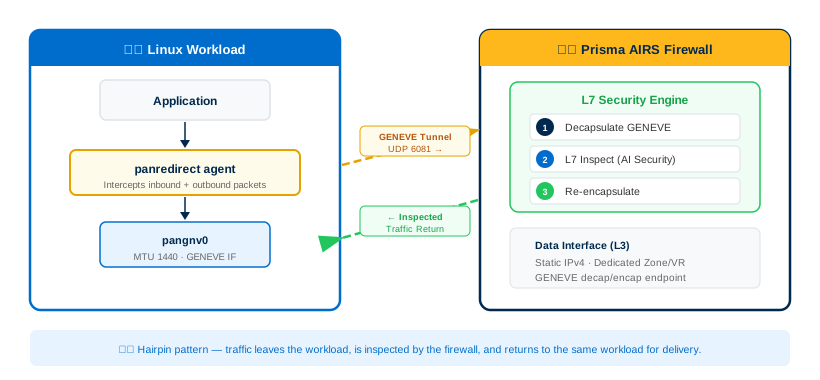
Four-step flow:
- Interception — The
panredirectagent intercepts inbound and outbound packets on the designated workload interface. - Encapsulation — The agent wraps packets in a GENEVE tunnel using
UDP 6081. A GENEVE option (0x20) and flow direction flag uniquely identify the traffic. - Inspection — The encapsulated traffic arrives at the Prisma AIRS firewall data interface. The firewall decapsulates, performs L7 inspection against security policies, and re-encapsulates the traffic.
- Delivery — The firewall sends the inspected packet back to the originating host. The agent decapsulates it and forwards it to the Linux kernel protocol stack for delivery to the application or destination.
Microperimeter runs on Linux workloads across private and public cloud platforms.
| Platform Type | Supported Platforms |
|---|---|
| Private Cloud | ESXi, KVM, Nutanix |
| Public Cloud | AWS, Azure, GCP |
The panredirect agent requires a supported Linux distribution running as a virtual machine or cloud instance. Bare metal servers and Windows workloads are not supported.
Microperimeter addresses a specific gap: east-west traffic between workloads that share the same network segment. Choose between deployment models based on your traffic pattern.
| Traffic Direction | Deployment Model | Use Case |
|---|---|---|
| North-south (ingress/egress) | Network Intercept | Traffic entering or leaving the cloud environment, app-to-model, app-to-internet |
| East-west (workload-to-workload) | Microperimeter (this guide) | Same-host or same-subnet traffic between processes, containers, or VMs that never traverses a network firewall |
| API-level (per-request) | API Intercept | Code-level scanning integrated via REST API, no infrastructure changes |
Microperimeter and Network Intercept are complementary. Network Intercept handles traffic that routes through the firewall naturally. Microperimeter captures traffic that bypasses the firewall because it stays within the same L2 segment.
Phase 1: Prerequisites
The panredirect agent only runs on specific non-EOL Linux distributions. Verify each target workload before proceeding.
| Supported Linux Distribution |
|---|
| Ubuntu 22.04 or 24.04 |
| Red Hat Enterprise Linux (RHEL) 8.x or 9.x |
| AlmaLinux 8.x or 9.x |
| Rocky Linux 8.x or 9.x |
| OpenSuse 15.6 |
- SSH to each target workload.
- Check the distribution and version:
cat /etc/os-release - Confirm the
NAMEandVERSION_IDfields match a supported distribution above.
The agent requires a Linux VM or cloud instance. Bare metal servers and Windows workloads are not supported.
Each target workload runs a supported Linux distribution listed in the table above.
GENEVE encapsulation requires UDP 6081 open between each workload and the Prisma AIRS firewall data interface.
- Identify the Prisma AIRS firewall data interface IP that will receive redirected traffic.
- From each target workload, verify connectivity on
UDP 6081:# Test UDP 6081 reachability to firewall data interface nc -zvu <firewall-data-IP> 6081 - Verify that any intermediate security groups, NACLs, or NSGs allow
UDP 6081in both directions between the workload and the firewall.
If the Linux workload uses firewalld, open UDP 6081 on the public zone before installing the agent:
sudo firewall-cmd --zone=public --add-port=6081/udp --permanent
sudo firewall-cmd --reloadUDP 6081 is open inbound and outbound between each workload and the firewall data interface. On RHEL-family distros, firewall-cmd --list-ports includes 6081/udp.
Microperimeter requires a deployed Prisma AIRS firewall with an available data interface. Standard VM-Series firewalls do not support this feature.
- Confirm a Prisma AIRS AI Runtime Firewall is deployed and operational. If not, complete the AIRS Network Intercept Core Guide through Phase 4 first.
- Verify the firewall has an available data interface that can be dedicated to Microperimeter traffic.
The data interface used for Microperimeter must be dedicated to this feature. Redirected traffic re-entering the same firewall on the same interface used for other traffic is not supported. Do not reuse an interface that already carries north-south or management traffic.
A Prisma AIRS firewall is deployed, operational, and has at least one available data interface for dedicated Microperimeter use.
The panredirect installer is available from the Palo Alto Networks Customer Support Portal.
- Log in to the Customer Support Portal (CSP).
- Navigate to
Updates>Software Updates>Traffic Redirector. - Download the
panredirectinstaller package appropriate for your Linux distribution. - Transfer the package to each target workload (e.g., via
scp).
The panredirect installer package is present on each target workload.
Phase 2: Firewall Interface Configuration
The Prisma AIRS firewall needs a dedicated Layer 3 interface to receive GENEVE-encapsulated traffic from the panredirect agent. This interface must have a static IPv4 address reachable from all workloads running the agent.
- Log in to the firewall management interface (or Panorama/SCM).
- Navigate to
Network>Interfaces. - Select the interface to dedicate to Microperimeter (e.g.,
ethernet1/2). - Set Interface Type to
Layer3. - On the Config tab, assign or create a dedicated Virtual Router (e.g.,
VR-Microperimeter). - On the Config tab, assign or create a dedicated Security Zone (e.g.,
Zone-Microperimeter). - On the IPv4 tab, set Type to
Static. - Click
Addand enter the static IPv4 address with subnet mask (e.g.,192.168.101.1/24).
Microperimeter requires a static IPv4 address. IPv6 is not supported for the data interface.
The interface shows type Layer3, a static IPv4 address, a dedicated security zone, and a dedicated virtual router in the interface list.
An Interface Management Profile on the data interface enables health check and telemetry communication between the panredirect agent and the firewall.
- Navigate to
Network>Network Profiles>Interface Mgmt. - Click
Addto create a new profile (e.g.,IMP-Microperimeter). - Enable
HTTPSandPingunder Network Services. - Click
OK. - Return to
Network>Interfacesand select the Microperimeter data interface. - On the Advanced tab, set Management Profile to the profile created above (e.g.,
IMP-Microperimeter). - Click
OK. - Click
Committo apply the interface and management profile configuration.
The data interface displays the management profile in the interface list. After commit, ping the interface IP from a workload to confirm reachability.
The firewall needs security policy rules to process the decapsulated east-west traffic arriving from the GENEVE tunnel. Without policy, the firewall will drop the redirected traffic.
- Navigate to
Policies>Security. - Click
Addto create a new rule. - Set Name to a descriptive value (e.g.,
Microperimeter-EastWest). - On the Source tab, set Source Zone to the Microperimeter zone (e.g.,
Zone-Microperimeter). - On the Destination tab, set Destination Zone to the same zone (
Zone-Microperimeter). - On the Actions tab, set Action to
Allow. - Attach the appropriate Security Profile Group (AI Security Profile, Threat Prevention, etc.) to enable L7 inspection.
- Click
OK, thenCommit.
The panredirect agent sends health check probes to the firewall. Create an additional security rule or modify the rule above to allow UDP traffic with source 169.254.1.1 port 45000 to destination 169.254.1.2 port 45000. Without this rule, panredirect health_check will fail.
The security rule appears in the policy list with the Microperimeter zone as both source and destination, and a security profile group attached for L7 inspection.
Phase 3: Deploy PAN Redirector Agent
Install the panredirect agent on each target Linux workload.
- SSH to the target workload.
- Make the installer executable and run it:
chmod +x ./panredirect-installer
sudo ./panredirect-installer
Run panredirect version. The output displays the installed version:
panredirect version
panredirect 0.9.0-3Point the agent at the Prisma AIRS firewall data interface so GENEVE-encapsulated traffic reaches the inspection engine.
- Set the firewall IP:
sudo panredirect configure --fwip <firewall-data-interface-IP>Example:
sudo panredirect configure --fwip 192.168.101.1
When using an Azure Internal Load Balancer (ILB) in front of the firewall, the ILB front-end IP differs from the firewall subnet. Use the --fwsubnet flag to specify the backend firewall subnet so direct-return works correctly:
sudo panredirect configure --fwip 10.0.3.4 --fwsubnet 10.0.4.0/24In this example, 10.0.3.4 is the ILB front-end IP and 10.0.4.0/24 is the subnet containing the firewall backend pool members.
Verify the firewall IP is reachable from the workload by pinging the configured address. The agent will use this IP for all GENEVE tunnel traffic.
Activate traffic redirection on the workload interface that carries the east-west traffic to be inspected. This is the interface whose traffic the agent will intercept.
- Identify the target interface (e.g.,
ens224,eth0):ip link show - Enable redirection:
sudo panredirect enable <interface>Example:
sudo panredirect enable ens224
Enabling panredirect on the management interface (the interface used for SSH access) will break SSH connectivity. If the management interface must also carry inspected traffic, use the --exception flag during configuration to exempt the management IP:
sudo panredirect configure --fwip <firewall-IP> --exception <management-IP>Alternatively, add a selective steering pass rule for SSH traffic before enabling (see Phase 4).
When redirection is enabled on an interface:
- A logical interface named
pangnv0is created with MTU1440for GENEVE encapsulation. tcp-segmentation-offload(TSO),generic-segmentation-offload(GSO), andlarge-receive-offload(LRO) are disabled on the redirected interface.- If Docker is using bridge networking with MTU 1500, containers may experience connectivity issues. Reduce the Docker bridge MTU to
1440to accommodate the GENEVE overhead.
Run panredirect status. The output shows the interface with ACT set to yes:
panredirect status
IF              FW_IP            VNI    IF_MAC             ACT
ens224 192.168.101.1 48813 00:50:56:95:f2:6e yesThe built-in health check confirms the GENEVE tunnel is operational and the firewall is inspecting traffic correctly.
- Run the health check:
panredirect health_check
The health check sends a UDP probe with source 169.254.1.1:45000 to destination 169.254.1.2:45000. The firewall must have a security rule that allows this traffic, as configured in Step 2.3. If the health check fails, verify the UDP rule exists and is committed.
The command outputs OK and returns exit code 0. A failing health check returns exit code 1.
By default, panredirect does not survive a system reboot. Enable the systemd service to ensure redirection starts automatically.
- Enable and start the systemd service:
sudo systemctl enable panredirect sudo systemctl start panredirect - Verify the service status:
systemctl status panredirect
The output shows Loaded: loaded (...; enabled; ...) and Active: active. The service will start automatically after reboots.
systemctl status panredirect
● panredirect.service - PAN redirect
     Loaded: loaded (/usr/lib/systemd/system/panredirect.service; enabled; preset: disabled)
     Active: active (exited) since ...
Main PID: 1099 (code=exited, status=0/SUCCESS)Phase 4: Configure Selective Steering Rules
When redirection is enabled on an interface, a default rule redirects all traffic to the firewall. Selective steering rules allow granular control over which traffic is redirected and which bypasses the firewall.
Rule structure: Each rule matches on a 5-tuple:
| Field | CLI Flag | Values |
|---|---|---|
| Protocol | --proto | tcp, udp, hex number, or any |
| Remote IP (source) | --remoteip | CIDR notation or any |
| Remote Port (source) | --remoteport | Port number (TCP/UDP only) |
| Local IP (destination) | --localip | CIDR notation or any |
| Local Port (destination) | --localport | Port number (TCP/UDP only) |
Actions:
pass— Route the matching traffic locally (bypass the firewall).redirect— Send the matching traffic to the firewall via GENEVE.
Evaluation order: Rules are evaluated in ascending index order. The first matching rule wins. The default catch-all redirect rule sits at index 0.
Run panredirect rule list to see the default rule:
panredirect rule list
ifname          idx proto remoteip        rport localip         lport action
ens224 0 any any any any any redirectIf the redirected interface also carries management traffic (SSH, monitoring), add pass rules to exempt that traffic from redirection. Insert these at a lower index than the default redirect rule so they match first.
- Exempt SSH traffic from a specific management subnet:
sudo panredirect rule insert --index 0 \ --interface ens224 \ --proto tcp \ --remoteip 10.0.0.0/8 \ --localport 22 \ --action pass - Exempt a specific trusted subnet from all inspection:
sudo panredirect rule append \
  --interface ens224 \
  --proto any \
  --remoteip 192.168.100.0/24 \
  --localip 192.168.100.0/24 \
  --action pass
rule insert --index N places a rule at position N, shifting existing rules down. rule append adds the rule after all existing rules. Use insert when the new rule must take precedence over existing rules; use append for lower-priority exceptions.
Run panredirect rule list. The output shows the new pass rules at the expected index positions, with the default redirect rule at a higher index.
Instead of redirecting all traffic, create specific redirect rules for only the traffic that requires inspection. This approach is useful when most traffic should bypass the firewall and only specific flows need L7 inspection.
- First, delete the default catch-all redirect rule if switching to a targeted model:
sudo panredirect rule delete --index 0 --interface ens224 - Add specific redirect rules for traffic that needs inspection:
# Redirect HTTP/HTTPS traffic to AI model endpoints
sudo panredirect rule append \
  --interface ens224 \
  --proto tcp \
  --remoteip 10.1.0.0/16 \
  --localport 443 \
  --action redirect
If the default catch-all redirect rule is deleted and no other rule matches a given flow, that traffic is routed locally (not redirected). Ensure every flow that requires inspection has a matching redirect rule.
Run panredirect rule list and confirm all intended redirect rules appear. Generate test traffic matching a redirect rule and verify it appears in the firewall traffic log.
Remove rules that are no longer needed by specifying the index and interface.
- List current rules to identify the index:
panredirect rule list - Delete the rule by index:
sudo panredirect rule delete --index <N> --interface <interface>Example:
sudo panredirect rule delete --index 3 --interface ens224
Run panredirect rule list again. The deleted rule no longer appears and remaining rules have been re-indexed.
Phase 5: Validation
Confirm the panredirect agent is running, redirecting on the correct interface, and communicating with the firewall.
- Check agent status:
panredirect statusConfirm
ACTisyesfor each redirected interface. - Run health check:
panredirect health_checkConfirm the output is
OK. - Verify the
pangnv0interface exists with MTU1440:ip link show pangnv0 - Verify systemd persistence:
systemctl is-enabled panredirectConfirm the output is
enabled.
All four checks pass: panredirect status shows active redirection, health_check returns OK, pangnv0 exists with MTU 1440, and the systemd service is enabled.
Send traffic through the redirected interface to confirm the firewall receives and inspects it.
- From the workload running
panredirect, generate test traffic to another host on the same subnet:# HTTP request to a test target curl -v http://<target-host-IP>/ # Or a simple ping ping -c 4 <target-host-IP> - On the firewall, check the traffic log to confirm the redirected traffic was received and inspected:
# From the firewall CLI
show log traffic
The firewall traffic log shows entries with the source and destination IPs of the test traffic, the Microperimeter security zone, and the applied security rule. The test traffic reaches its destination after passing through the firewall.
Confirm the firewall applies security profiles to the redirected traffic, not just forwarding it.
- Generate traffic that should trigger a security profile action (e.g., a URL category match, a known test signature, or a DLP pattern).
- Check the firewall threat log:
# From the firewall CLI show log threat - In SCM or Panorama, navigate to
Monitor>Logs>Threatand filter by the Microperimeter zone.
Threat log entries appear for the test traffic with the correct security profile actions (alert, block, or reset). The Microperimeter deployment is fully operational with L7 inspection on east-west traffic.
Confirm that selective steering rules are working as expected: traffic matching pass rules bypasses the firewall and traffic matching redirect rules is inspected.
- Generate traffic that matches a
passrule (e.g., SSH from the management subnet). - Verify this traffic does not appear in the firewall traffic log.
- Generate traffic that matches a
redirectrule. - Verify this traffic does appear in the firewall traffic log.
Traffic matching pass rules routes locally without firewall log entries. Traffic matching redirect rules appears in the firewall log with the expected security policy applied.
Troubleshooting
The panredirect agent includes a built-in diagnostic tool that collects a point-in-time snapshot of the agent status, host network configuration, and recent traffic patterns, similar to a Technical Support File (TSF) in PAN-OS.
- Generate the bundle:
sudo panredirect diag --out /tmp/microperimeter-diag.tar - Extract and review:
tar xf /tmp/microperimeter-diag.tar -C /tmp/diag-output/
ls /tmp/diag-output/
Diagnostic Bundle Contents
| File | Contents |
|---|---|
fwdiag.pcap | 10-second packet capture (tcpdump) on the interface with the route to the firewall |
curl-test.out | HTTP connectivity test results |
ping-test.out | ICMP reachability test results to the firewall |
ip-rules.out | Current IP routing rules |
ip-show-routes.out | Full routing table dump |
iptables-rules-t-filter.out | Active iptables filter rules |
sysctl-all.out | All kernel parameters (sysctl --all) |
package-list.out | Installed software packages on the workload |
Generate a diagnostic bundle before opening a Palo Alto Networks support case. The bundle contains all information needed for initial triage.
The tarball is created at the specified path and contains the files listed above.
| Symptom | Likely Cause | Resolution |
|---|---|---|
panredirect health_check returns failure (exit code 1) |
Firewall missing the UDP health check security rule | Add a security rule allowing UDP from 169.254.1.1:45000 to 169.254.1.2:45000 on the Microperimeter zone. Commit and retry. |
| SSH connection lost after enabling redirection | Redirection enabled on the management interface without an SSH exception | If access is lost, reboot the workload (redirection is not persistent unless systemd is enabled). After recovery, add a pass rule for SSH traffic or use the --exception flag before re-enabling. |
| Docker containers cannot reach external services | GENEVE encapsulation reduces effective MTU; Docker bridge still at 1500 | Set Docker bridge MTU to 1440. Edit /etc/docker/daemon.json and add "mtu": 1440, then restart Docker. |
| No traffic appearing in firewall logs | UDP 6081 blocked between workload and firewall |
Verify security groups, NACLs, or NSGs allow UDP 6081 bidirectionally. Check host firewall rules (firewall-cmd --list-ports on RHEL-family). Run panredirect health_check to confirm tunnel connectivity. |
panredirect status shows ACT: no |
Redirection not enabled or was stopped | Run panredirect enable <interface> and verify with panredirect status. |
| Redirection lost after reboot | Systemd service not enabled | Run systemctl enable panredirect and systemctl start panredirect. |
pangnv0 interface not created |
Agent installation incomplete or interface not enabled | Verify installation with panredirect version. If installed, run panredirect enable <interface>. |
Telemetry errors in systemd logs (Failed to send telemetry) |
Workload cannot reach telemetry endpoint | These warnings are non-fatal. Redirection continues to function. Verify outbound internet connectivity from the workload if telemetry reporting is required. |
After resolving any issue, re-run panredirect health_check and confirm the output is OK.
CLI Reference
| Command | Description |
|---|---|
panredirect version | Display the installed agent version. |
panredirect status | Show redirection status for all configured interfaces (interface name, firewall IP, VNI, MAC, active state). |
panredirect start | Start redirection on all previously configured interfaces. |
panredirect stop | Stop redirection on all interfaces. Traffic returns to normal local routing. |
panredirect enable <interface> | Enable redirection on a specific interface. Creates the pangnv0 tunnel interface and begins intercepting traffic. |
panredirect disable <interface> | Disable redirection on a specific interface. Removes the GENEVE tunnel and restores normal routing. |
panredirect health_check | Test GENEVE tunnel connectivity to the firewall. Returns OK (exit 0) or failure (exit 1). |
panredirect configure --fwip <IP> | Set the firewall destination IP for GENEVE tunnels. |
panredirect configure --fwip <IP> --fwsubnet <CIDR> | Set firewall IP and backend subnet for Azure ILB deployments. |
panredirect configure --fwip <IP> --exception <MGMT_IP> | Set firewall IP and exempt the management IP from redirection. |
panredirect rule list | Display all selective steering rules with index, protocol, IPs, ports, and action. |
panredirect rule append --interface <IF> --proto <P> --action <A> | Add a new rule at the end of the rule list. Optional flags: --remoteip, --remoteport, --localip, --localport. |
panredirect rule insert --index <N> --interface <IF> --proto <P> --action <A> | Insert a rule at position N. Existing rules at N and above shift down. Same optional flags as append. |
panredirect rule delete --index <N> --interface <IF> | Delete the rule at position N on the specified interface. |
panredirect diag --out <filename> | Generate a diagnostic bundle tarball containing pcaps, routing info, iptables rules, and system metadata. |
Systemd Service Commands
| Command | Description |
|---|---|
systemctl enable panredirect | Enable the agent to start automatically on boot. |
systemctl start panredirect | Start the agent service immediately. |
systemctl stop panredirect | Stop the agent service immediately. |
systemctl status panredirect | Display current service status, load state, and recent log entries. |
systemctl is-enabled panredirect | Check if the service is set to start on boot. |
Run panredirect --help or any command with -h to confirm the CLI is accessible and display usage information.
Uninstall
To completely remove the panredirect agent from a workload, stop redirection, disable the interface, and uninstall the package.
- Stop all redirection:
sudo panredirect stop - Disable redirection on each interface:
sudo panredirect disable <interface> - Disable the systemd service:
sudo systemctl disable panredirect - Remove the package:
RHEL / Rocky / Alma / OpenSuse:
sudo dnf remove panredirectUbuntu / Debian:
sudo apt remove panredirect
Run panredirect version. The command should fail with a "command not found" error. Verify the pangnv0 interface no longer exists: ip link show pangnv0 should return "Device does not exist".
Deployment & Validation Checklist
Phase 1: Prerequisites
- Target workloads run a supported Linux distribution
- No bare metal or Windows workloads in scope
UDP 6081open between all workloads and firewall data interface- RHEL-family host firewall rules updated (if applicable)
- Prisma AIRS firewall deployed and operational
panredirectpackage downloaded from CSP and transferred to workloads
Phase 2: Firewall Configuration
- Dedicated L3 data interface configured with static IPv4
- Dedicated security zone and virtual router assigned
- Interface management profile (HTTPS + Ping) attached
- Security policy rule created for Microperimeter zone
- Health check UDP rule in place (169.254.1.1:45000 to 169.254.1.2:45000)
- Configuration committed
Phase 3: Deploy Redirector
panredirectinstalled on each target workload- Firewall destination IP configured
- Azure ILB
--fwsubnetset (if applicable) - Redirection enabled on target interfaces (not management interfaces)
panredirect health_checkreturnsOK- Systemd service enabled for reboot persistence
Phase 4: Steering Rules
- Default redirect rule reviewed
- Management traffic exceptions added (SSH, monitoring)
- Targeted redirect rules added (if replacing default catch-all)
- Rule list reviewed for correct ordering
Phase 5: Validation
panredirect statusshows active on all expected interfacespanredirect health_checkreturnsOKpangnv0interface exists with MTU 1440- Systemd service enabled and active
- Test traffic appears in firewall traffic logs
- Security policy enforcement confirmed in threat logs
- Pass rules correctly bypass firewall
- Redirect rules correctly send traffic to firewall