 |
|||||
|
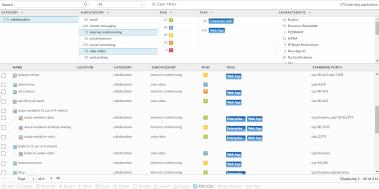
Click the application name link, to view the application description including the standard port and characteristics of the application, risk among other details. For details on the application settings, see Defining Applications.
If the icon to the left of the application name has a yellow pencil (
 ), the application is a custom application. ), the application is a custom application. |
|||||
|
You can Disable an application (or several applications) so that the application signature is not matched against traffic. Security rules defined to block, allow, or enforce a matching application are not applied to the application traffic when the app is disabled. You might choose to disable an application that is included with a new content release version because policy enforcement for the application might change when the application is uniquely identified. For example, an application that is identified as web-browsing traffic is allowed by the firewall prior to a new content version installation; after installing the content update, the uniquely identified application no longer matches the Security rule that allows web-browsing traffic. In this case, you could choose to disable the application so that traffic matched to the application signature continues to be classified as web-browsing traffic and is allowed.
|
|||||
|
Select a disabled application and Enable it so that the firewall can manage the application according to your configured security policies.
|
|||||
|
To import an application, click Import. Browse to select the file, and select the target virtual system from the Destination drop-down.
|
|||||
|
To export an application, select this option for the application and click Export. Follow the prompts to save the file.
|
|||||
|
Export the information on all applications in PDF/CSV format. Only visible columns in the web interface are exported. See Export Configuration Table Data.
|
|||||
|
Review Policies to assess the policy-based enforcement for applications before and after installing a content release version. Use the Policy Review dialog to review policy impact for new applications included in a downloaded content release version. The Policy Review dialog allows you to add or remove a pending application (an application that is downloaded with a content release version but is not installed on the firewall) to or from an existing Security policy rule; policy changes for pending applications do not take effect until the corresponding content release version is installed. You can also access the Policy Review dialog when downloading and installing content release versions on the Device > Dynamic Updates page.
|
|||||
|
A predefined tag named sanctioned is available for you to tag SaaS applications. While a SaaS application is an application that is identified as Saas=yes in the details on application characteristics, you can use the sanctioned tag on any application.
Tag applications as sanctioned to help differentiate sanctioned SaaS application traffic from unsanctioned SaaS application traffic, for example, when you examine the SaaS Application Usage Report or when you evaluate the applications on your network.
Select an application, click Edit Tags and from the drop-down, select the predefined Sanctioned tag to identify any application that you want to explicitly allow on your network. When you then generate the SaaS Application Usage Report (see Monitor > PDF Reports > SaaS Application Usage), you can compare statistics on the application that you have sanctioned versus unsanctioned SaaS applications that are being used on your network.
You can also Remove tag or Override tag. The override option is only available on a firewall that has inherited settings from a device group pushed from Panorama.
|