
Enter yes. The system then asks you to confirm. Enter yes again to boot the firewall in standard mode.
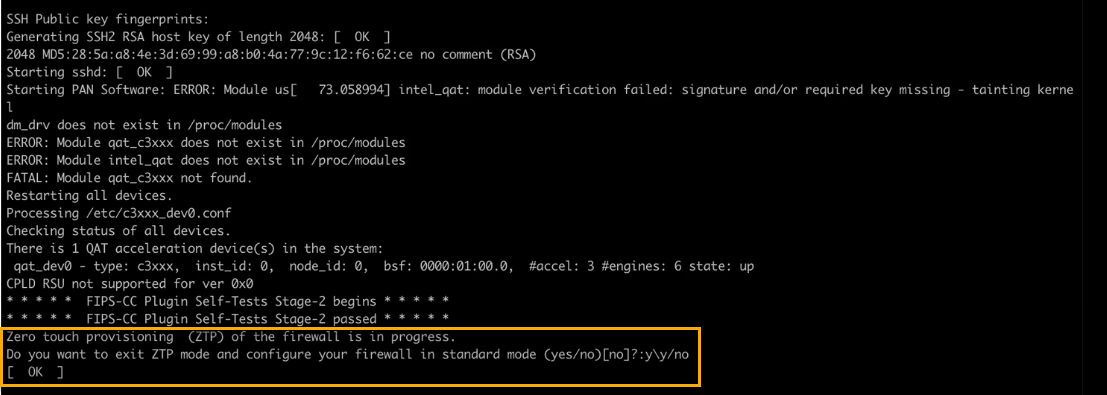
|
2.
|
(If you miss the above CLI prompt) You can also change your boot mode using the web interface. Go to the firewall login screen at any point before or during the startup process. A prompt asks if you want to continue booting in ZTP mode or if you want to switch to standard mode. Select Standard Mode and the firewall begins rebooting in standard mode.
|
|
◦
|
(Standard mode) Change the IP address on your computer to an address in the 192.168.1.0/24 network, such as 192.168.1.2. From a web browser, go to https://192.168.1.1. When prompted, log in to the web interface using the default username and password (admin/admin).
|
|
◦
|
(ZTP mode) Follow the instructions provided by your Panorama administrator to register your ZTP firewall. You must enter the serial number (12-digit number identified as S/N) and claim key (8-digit number). These numbers are on stickers attached to the back of the device.
|