Device : Device > IoT Security > DHCP Server Log Ingestion

Device > IoT Security > DHCP Server Log Ingestion
IoT Security relies on IP address-to-MAC address bindings to ascribe observed network behaviors to IoT devices and uniquely track them. IoT Security typically uses DHCP traffic collected by next-generation firewalls to learn IP address-to-MAC address bindings and track IP address changes. However, when it’s not possible to position a firewall in the DHCP data path, you can use this method to ingest DHCP server logs and expand DHCP traffic visibility.
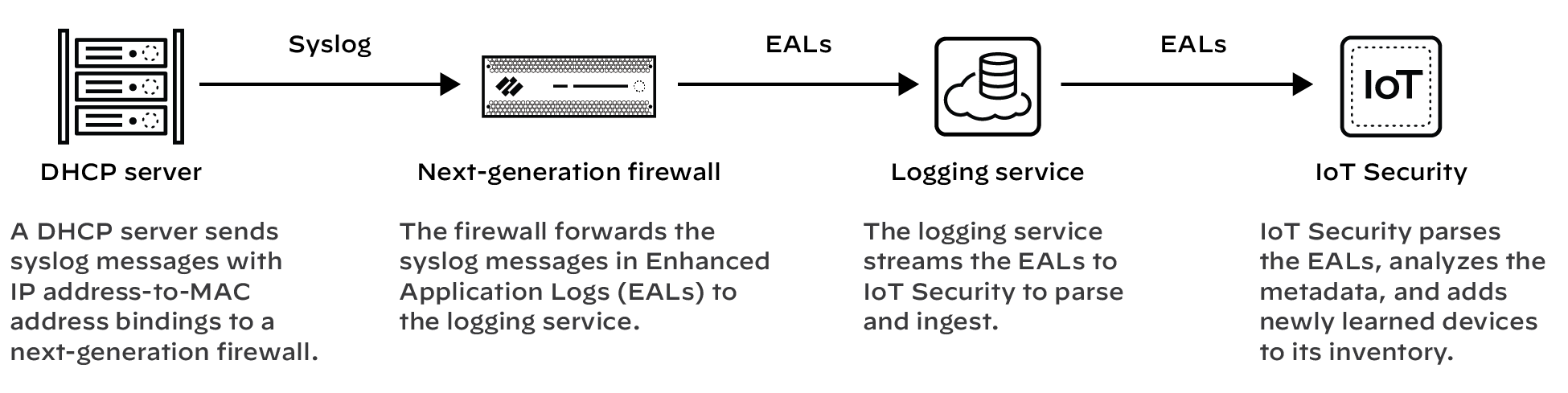
In areas of the network where it’s difficult to route DHCP traffic to or through a firewall, configure DHCP servers to send their server logs as syslog messages to the firewall. The firewall then forwards the messages as Enhanced Application Logs (EALs) with a subtype of dhcp-syslog through the logging service to IoT Security. IoT Security parses them to learn the IP address-to-MAC address bindings and then adds newly learned devices to its inventory.
Prerequisites
•
•
Set up the Next-generation Firewall
Set up your next-generation firewall to receive syslog messages from one or more DHCP servers. The firewall will automatically forward the syslog messages it receives as EALs to the logging service, which streams them to IoT Security to parse and analyze.
1.
Log in to your next-generation firewall, select Device > IoT > + Add, configure the following, and then click OK:
Select TCP, UDP, or SSL. When making your choice, consider what’s important for the connection between the DHCP server and firewall. TCP provides transmission reliability but not security. UDP provides low processing overhead and faster speeds but lacks reliability and security. SSL provides reliability and security but incurs more overhead.
Note: 
2.
Add more DHCP servers to expand visibility of DHCP traffic throughout your network as needed. All next-generation firewalls support a maximum of 100 DHCP servers per firewall.
Set up DHCP Servers for Syslog
Configure your DHCP servers to send syslog messages of their server logs to the management interface on the next-generation firewall. Make sure to configure the DHCP servers to use the same protocol configured for them on the firewall: TCP, UDP, or SSL. See the documentation for your DHCP servers for configuration instructions.
Check the DHCP Server Connection Status
To see all the configured DHCP servers, select Device > IoT.
A green circle next to a DHCP server name means it was configured in Panorama and is read-only when viewed in the web interface of the local next-generation firewall.
When a DHCP server using TCP or SSL is currently connected to the firewall, “Connected” appears in the Status column. “Connected” also appears in this column if a DHCP server using UDP has been connected within the past two hours. At all other times, the Status column is empty, indicating that the server isn’t currently connected to the firewall.
The following CLI commands are also useful for checking DHCP server settings, the status of their connections, and the data they’re providing to IoT Security:
Entering all shows a table with all DHCP servers configured on the firewall, the port numbers on which they connect, and their current connection status.
Entering server <server-name> shows detailed information about a specific DHCP server and its recent activity.
Device