Student Setup Guide Lab
Create your private lab repository, install dependencies, and launch Claude Code before the lab begins
Complete these steps before the lab begins. By the end, you will have your own private copy of the lab repository, dependencies installed, and Claude Code ready to go.
Pre-Lab Setup
Set Up a GCP Project via Torque
Before touching the pipeline, provision the GCP project you will use for the lab through Torque.
- Navigate to
https://laas.paloaltonetworks.com. - Sign in using enterprise SSO.
- If not already on the Self-service tab, click Self-service.
Torque requires the corporate access VPN. Connect before navigating to the URL.
- Click Launch under "Create a GCP Project with Owner Permissions".
- Set a desired environment name, and set the environment duration to 2 weeks.
- Click Inputs, set "Can this be replicated in an on-premise GCS lab (VM/Physical device)?" to No, then enter
GCS-PSOfor Case or Project-Id. - Click Tags, set activity_type to
developmentand set department toTechnical_service. - Click Launch toward the bottom.
After approximately 7 minutes, you will receive an email with your GCP Project information.
Keep these values handy; you will need them when editing .github/pipeline-config.yaml during Module 0.
Set Up Your Lab Repository and Claude Code
- Open the template repository in your browser:
https://github.com/panw-airs-enablement/prisma-airs-mlops-lab - Click the green "Use this template" button (top right, next to "Code").
- Select "Create a new repository".
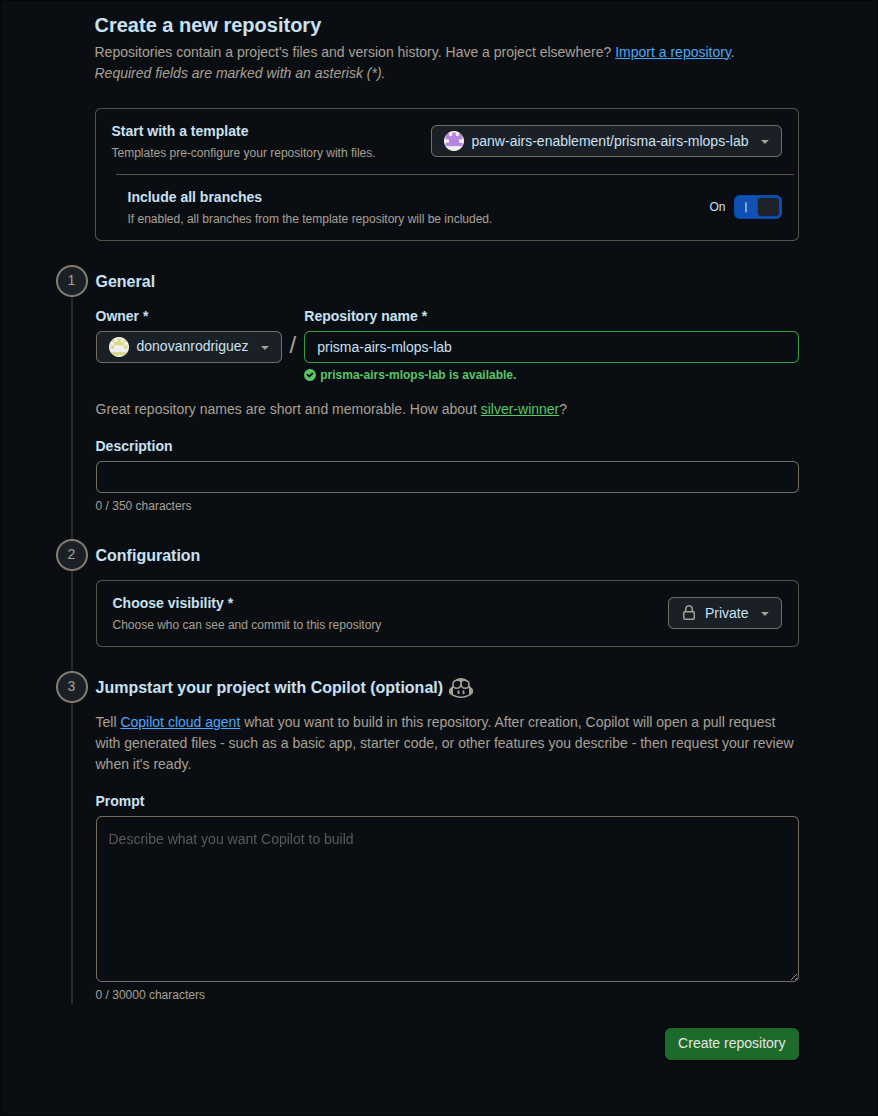
- Configure your new repo:
- Include all branches — toggle On; required so you get both the
labbranch (your workspace) andmainbranch (reference solutions) - Owner — select your own GitHub account
- Repository name —
prisma-airs-mlops-lab(the default is fine) - Visibility — select Private
- Include all branches — toggle On; required so you get both the
- Click "Create repository".
Your screen should look like this:
GitHub Secrets are repo-scoped. Your repo will contain GCP project IDs, AIRS credentials, and deployment configs specific to your environment. A public fork would expose these.
- Clone your new private repo:
git clone https://github.com/<your-github-username>/prisma-airs-mlops-lab.git cd prisma-airs-mlops-lab - Switch to the
labbranch:git checkout labThe
labbranch is your working branch. It has the pipeline structure in place but AIRS scanning is not yet integrated; that is what you will build during the workshop.The
mainbranch contains the completed reference implementation. You can compare against it anytime withgit diff lab..main. - Install Python dependencies:
uv sync
If you don't have uv installed: curl -LsSf https://astral.sh/uv/install.sh | sh then restart your terminal.
Before launching Claude Code, sign up as an Anton user and configure Claude Code to run as one. Follow both guides in order:
- Sign up: Become an Anton User
- Configure Claude Code: Using Claude Code
These guides are internal to Palo Alto Networks. If the pages do not load, connect to the corporate network or VPN first.
- Open Claude Code in the repo directory:
claudeClaude has been pre-configured as your lab mentor through the
CLAUDE.mdfile in the repo root. It knows the codebase, paces its explanations, and uses Socratic questioning to guide you. - Start the lab by typing:
/lab:module 0Module 0 walks you through verifying your GCP project, GitHub CLI, and AIRS credentials. Claude will also help you connect your repo to the template for receiving instructor updates.
Quick Reference
| Command | What It Does |
|---|---|
/lab:module N | Start or resume module N |
/lab:verify-N | Run verification checks for module N |
/lab:hint | Get a progressive hint for your current challenge |
/lab:explore TOPIC | Deep-dive into a concept |
/lab:quiz | Test your understanding |
/lab:progress | See your completion dashboard |
Resuming Work Between Sessions
When you come back to the lab after closing your terminal or starting a new day, follow these three steps.
Before starting Claude Code, pull any changes the instructor has pushed. Open a terminal in your repo directory:
cd prisma-airs-mlops-lab
claudeThen paste this prompt into Claude:
Check if I have an "upstream" remote pointing to panw-airs-enablement/prisma-airs-mlops-lab.
If not, add it. Then fetch upstream and merge upstream/lab into my current branch.
If there are merge conflicts on lab/.progress.json or .github/pipeline-config.yaml,
keep my version (--ours) since those have my personal config. For everything else,
take upstream's version (--theirs).Claude will handle the git commands and resolve any conflicts automatically.
If upstream changes updated CLAUDE.md or any lab files, Claude needs to pick up those changes. Exit and restart Claude Code so it reads the latest instructions:
/exitclaude/resume recovers your previous conversation but keeps the old CLAUDE.md instructions. After pulling instructor updates, a fresh session ensures Claude is working with the latest lab content. Your progress isn't lost; it's all in .progress.json.
Your progress is saved in lab/.progress.json, so Claude knows exactly where you are. Run:
/lab:progressThis shows your completion dashboard: which modules are done, your points, and any blockers. Then resume your current module:
/lab:module NReplace N with whatever module you were on. Claude will read your progress file and continue from where you left off.
Add the upstream remote (first time only):
git remote add upstream https://github.com/panw-airs-enablement/prisma-airs-mlops-lab.gitPull changes:
git fetch upstream
git merge upstream/lab --no-editIf you get a merge conflict on lab/.progress.json or .github/pipeline-config.yaml, keep your version (these have your personal config):
git checkout --ours lab/.progress.json .github/pipeline-config.yaml
git add lab/.progress.json .github/pipeline-config.yaml
git commit --no-editFor conflicts in other files (lab guides, code, workflows), take the instructor's version:
git checkout --theirs path/to/file
git add path/to/file
git commit --no-editTroubleshooting
| Problem | Fix |
|---|---|
| "Use this template" button not visible | Make sure you are signed into GitHub |
lab branch doesn't exist after clone | You missed "Include all branches" during template creation; delete the repo, recreate with the toggle on |
uv: command not found | Install uv: curl -LsSf https://astral.sh/uv/install.sh | sh and restart your terminal |
claude: command not found | Install Claude Code: npm install -g @anthropic-ai/claude-code |
| Claude doesn't seem to know about the lab | Make sure you're in the repo directory and on the lab branch; Claude reads CLAUDE.md from the repo root |
Merge conflict on lab/.progress.json | Keep your version: git checkout --ours lab/.progress.json && git add lab/.progress.json && git commit --no-edit |
upstream remote not found | Add it: git remote add upstream https://github.com/panw-airs-enablement/prisma-airs-mlops-lab.git |